
Configure the Scheduled Email Task
Admissions emails require the PROCESS_ANT_EMAILS scheduled task to be configured in order to run. This task generates bulk emails (such as offers and reminders to resubmit).
Confirm Email Tasks are Configured
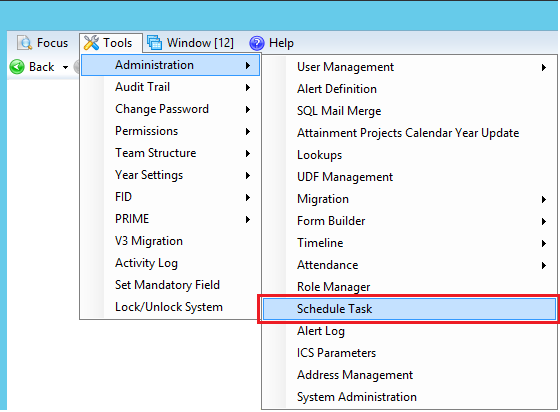
- In the v4 Client, select Tools | Administration | Schedule Task to display the Schedule Task Search dialog.
- Click the Search button to display a list of current scheduled tasks.
- Confirm that the PROCESS_ANT_EMAILS task is included in the list.
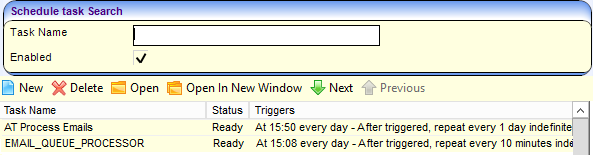
- If the PROCESS_ANT_EMAILS task is not listed, then your LA’s Education Coordinator should set the task up. If it is not on the list, untick Enabled above the list, as it might not be active.
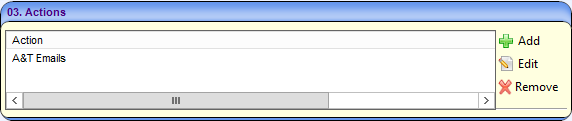
The Task Name of the PROCESS_ANT_EMAILS task may vary. However, the task action for the bulk email task (viewable by double clicking the task, then clicking the 03.Actions button) is always set to “A&T Emails”.
Check Triggers
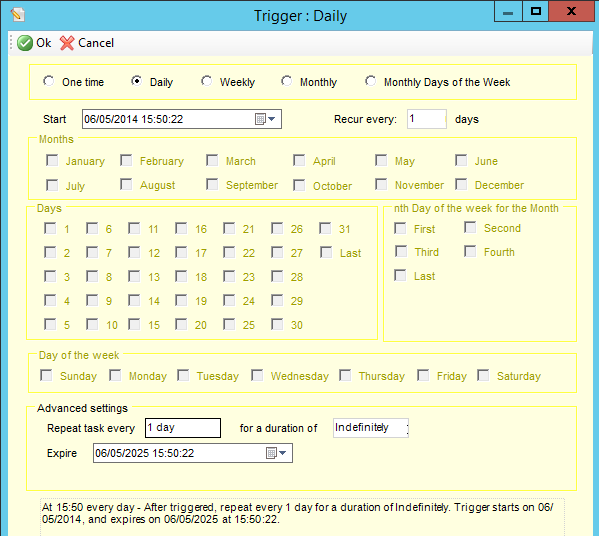
Confirm that the PROCESS_ANT_EMAILS task will trigger at the correct time:
- Double-click on a task to display editable fields relating to that task.
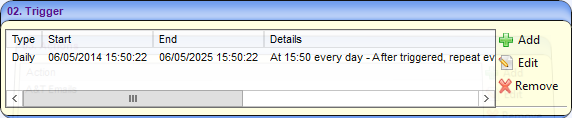
- Click the 02. Trigger button to display the task’s trigger details.
- Highlight the task’s trigger.
- Click the Edit button to display the Trigger dialog.
- Ensure that the Daily radio button is selected and that the Recur every field is set to 1.
- Enter the date and time you want the trigger to start into the Start field.
- Enter “1 day” into the Repeat task every field.
- Enter “Indefinitely” into the for a duration of field.
- If required, enter an expiry date into the Expire field.
- Click the Ok button to confirm your changes.
More information:
v4 Scheduled Tasks technical guide, available from Publications.