
Click the back button to return to the previous page or use the Table of Contents.
A&T Back Office
Configure E-Application Settings
E-Application settings for transfer groups are configured via Process | Transfer Groups | E-App Settings. Each transfer group can have different settings, which must be set before online applications open. Additional subgroup settings are configured via Process | Transfer Groups | Sub Groups | Additional Online Parameters and additional global settings are configured via Administration | Applications | Online Parameters.
The tab has four sections:
- Basic Details:
Enables you to specify online labels, dates, enabling online responses, the number of permitted preferences, the UID entry prompt and whether the Moving House question is presented to applicants. - Online Text:
Blocks of user defined text, displayed online and in emails. Welsh LAs can define text in both English and Welsh. - Additional Questions:
Enables you to select transfer group specific questions to be asked to applicants during the application process. - Additional Questions (subgroup default):
Enables you to select subgroup specific questions to be asked to applicants during the application process.
Add Basic Details
- In A&T Back Office, select Process | Transfer Groups | E-App Settings to display the E-App Settings page.
- Open the Basic Details section and then click the Edit hyperlink to display the Basic Details information in edit mode.
Different sets of fields are displayed for in-year and normal phased transfer groups. See the following section for a full list of the fields that are displayed for each transfer group type.
- Complete the fields as required and then click the Save button to save your changes.
Normal Phased Transfer Group
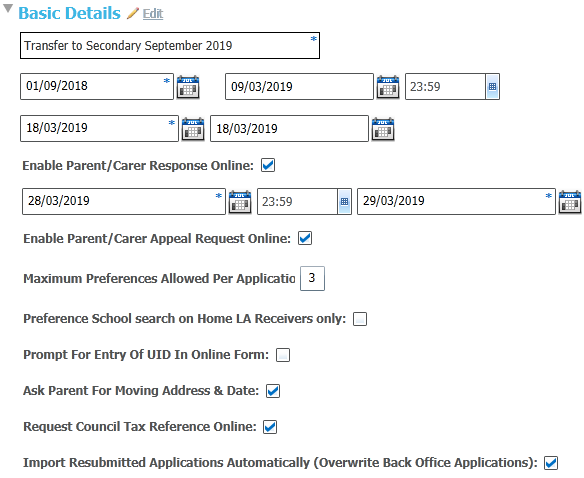
Basic Details Fields
All Transfer Groups
These fields are displayed for both normal phased and in-year transfer groups.
Online Label for Transfer Group
The transfer group name displayed in the Citizen Portal. This is used by parents to make applications, and must therefore be unambiguous and avoid the use of internal terminology.
Online Starting and Closing Date and Time
Defines the period in which applications can be submitted. Starting Date is mandatory. If a Closing Date and Time are entered, then the Transfer Data processes can only be used after this date and time.
Maximum Preferences Allowed Per Application
The maximum number of preference schools that can be selected for this transfer group.
Search on Home LA Receivers Only
If this check box is selected, then applicants can only search for Home LA receivers when using the Citizen Portal. This is in accordance with statutory guidance stating that applicants apply for in-year school places directly to the preference school’s Admission Authority or its maintaining LA.
Prompt for Entry of UID In Online Form
If selected, then online applicants are asked to enter the UID that has been supplied to them by the Local Authority when applying.
Ask Parent for Moving Address & Date
If selected, then the Moving Date question is displayed on the online form, enabling applicants to enter the new address and date of any prospective house moves.
If the child currently lives outside the area of the LA to which they are applying, but is part of a returning Crown Servant or Service family and can provide official written confirmation that they are moving into the area before they start the new school, then their new address must be used for the admissions assessment.
Request Council Tax Reference Online
If selected, then applicants can enter their council tax reference number into the online form in order to verify their address and confirm that they live within a particular catchment.
Import Resubmitted Applications Automatically
If selected, then online applications that have been changed and resubmitted are automatically imported. Existing applications are overwritten with a status of Not Verified.
If not selected, then online applications that have been changed and resubmitted are displayed in Process | Incoming Applications | Multiple Applications and must be resolved manually.
In-Year Transfer Groups Only
Enable Progress Updates via Citizen Portal
This check box enables Citizen Portal status updates for the transfer group.
Allow Applicants to Have Multiple Simultaneous Open In-Year Applications for a Student
If selected, enables applicants to create multiple open in-year applications for a student.
If not selected, then the applicant is prompted to either close or edit the existing application if they attempt to make a new in-year application when one is already open.
Allow Citizens to Remove In-Year Applications
If selected, enables applicants to remove in-year applications via the Citizen Portal.
If not selected, then the Close Application hyperlink is not displayed to applicants in the Citizen Portal.
Normal Phased Transfer Groups Only
Publicise Date
The date on which offers are published online and applicants are emailed with their offer. This is mandatory if the Enable Parent/Carer Response Online check box is selected.
Receiver Publicise Date
The date on which receivers can view the students that have been allocated to their school in the Provider Portal.
Enable Parent/Carer Reponse Online
Displays additional fields, enabling you to specify dates relating to applicant responses:

- Enter a Response Closing Date (mandatory) and Time (recommended). Applicants cannot respond online after this date and time.
- Enter an Import Response Date (mandatory).
- If not already added, enter a Publicise Date. This must be before the response closing date.
- Set the Parent/Carer Response Reminder Days field via Administration | Applications | Online Parameters | Reminder Email Scheduling to an appropriate value so that emails are sent to remind applicants to respond to their offer.
Add Online Text
The Online Text items are blocks of user-definable text. Some are displayed on-screen in A&T Online, and some are included in emails sent to applicants. Welsh Local Authorities can add text in both English and Welsh.
To configure online text:
- In A&T Back Office, select Process | Transfer Groups | E-App Settings to display the E-App Settings page.
- Expand the Online Text section to display the text item drop-down menu and field.
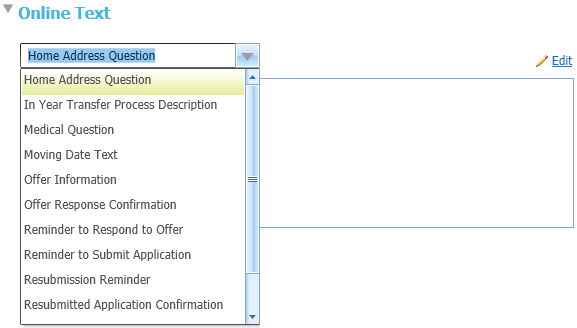
- If your LA is Welsh, select either English or Welsh from the left-hand drop-down menu to specify text in the selected language. This drop-down menu is not displayed for non-Welsh LAs.
- Select an item from the text item drop-down menu. The existing text for the selected item (if any) is displayed.
- Click the Edit hyperlink to display the text editor dialog.

- Add and format the text as required and then click the Save button to save your changes.
The text editor produces HTML output, meaning that knowledge of HTML is not needed. It is recommended that you view the formatted text in A&T Online to ensure that it displays as expected.
Online Text Items
Home Address Question
Asks whether the child’s and applicant’s home addresses are the same. Additional text should be added to include the LA’s definition of a home address for admissions purposes.
In Year Transfer Process Description
This item is available for in-year transfer groups only.
Describes the Local Authority’s process for in-year applications. This text is displayed in Admissions Online after an applicant has selected the in-year transfer group and before the Date Place Required field is displayed.
Medical Question
A transfer group-level description of the medical preference reason. This text is only displayed if the LA has selected Medical Reason as an oversubscription criterion.
If Medical Reason text is defined at the subgroup level (via Process | Transfer Groups | Additional Online Parameters), then that text overrides any text entered in the Medical Question field. If no text is entered in either location, a default question is displayed.
Because of the location of this question in the online form, all formatting except hyperlinks is removed when the text is displayed online.
Online Text Items
Moving Date Text
Defines the question that is displayed on the Child’s Address Details page to ask if the child will be moving house before they start at their new school. Service or Crown Servant families who are moving as a result of a confirmed posting must have their future address taken into account, but in other cases Local Authorities can use their discretion.
Additional text can be added if this section needs to refer to the child rather than the applicant, or to tell applicants the LA’s policy and the procedure to be followed.
Example Text:
English: If you are moving from the above address, please supply date.
Welsh: Os ydych yn symyd o’r cyfeiriad uchod, rhowch y dyddiad.
Offer Information
Offer Information emails inform applicants of their offers. These emails are sent to applicants after offers have been generated and the Publicise date has passed.
This text block displays before the list of preferences in the email.
Offer Response Confirmation
Offer Response emails are sent to applicants to confirm the receipt of their response to an online offer. These emails are sent once applicants have completed the information on the Offer Information page in A&T Online and clicked the Next button.
This text block displays before the list of preferences in the email.
Reminder to Respond to Offer
Reminder to Respond to Offer emails are sent to applicants who have not responded to their offers. They are only sent if the transfer group has the Enable Online Parent / Carer Responses check box selected in Process | Transfer Groups | E-Application Settings and there is a number of days entered in the Parent/Carer Response Reminder Days field in Administration | Applications | Online Parameters | Reminder Email Scheduling.
This text block is included as the first paragraph of the email.
Reminder to Submit Application
Reminder to Submit Application emails are sent to applicants who have created applications but have not yet submitted them. They are sent before the transfer group closing date, with the number of days that they are sent before the closing date configured via Administration | Applications | Online Parameters.
This text block is included as the first paragraph of the email.
Resubmission Reminder
Resubmission Reminder emails are sent to applicants who edited their application online after it was submitted, but have not resubmitted their applications on the day that the edits were made.
This text block is included near the beginning of the email.
Resubmitted Application Confirmation
Resubmitted Application Confirmation emails are sent to applicants who have edited and submitted an application in a normal phased admissions round to confirm that the changes have been received. The emails include the applicant’s preferences and the Publicise date. The text varies depending on whether or not the applicants have asked to be informed of their offer by email.
This text block displays before the list of preferences in the email.
Sibling Question
Defines the question that is displayed on the Admissions Online | Preference Reasons page to ask if the child has a sibling who attends the preference school. Additional text can be added to include your Local Authority’s definition of a sibling for the purposes of admissions criteria.
Example Text:
English: Does your child have a sibling who will still be attending the school when your child starts?
Welsh: Oes gan eich plentyn frawd/chwaer a fydd dal yn mynychy’r ysgol pan mae’ch plentyn yn cychwyn?
Submission Confirmation
Submission Confirmation emails are sent when applicants submit new applications, confirming their application details. These emails include the applicant’s preferences and the Publicise date. The text varies depending on whether or not the applicants have asked to be informed of their offers by email.
This text block is included in the email before the list of preferences.
Emails are only sent to those applicants who have opted to receive them. If your Local Authority does not wish to enter their own email text then the corresponding text items can be left blank, in which case a block of default text is included in the emails.