
Click the back button to return to the previous page or use the Table of Contents.
ECS Batch Validation
The Eligibility Checking Service (ECSECS) provided by the Department for Work and Pension can be used to check if applicants are eligible to receive Free School Meals (FSM). The service takes the National Insurance (NI) number or National Asylum Support Service (NASS) number recorded for the parent/carer and checks it against the DWP eligibility database. The check can be run against a single application or against multiple applications at once via the ECS Validation tab in the Administration area.
G&B uses the ECS service to batch check the eligibility of multiple FSM applicants. The batch processing of FSM claims has three stages; submitting a batch of applications to the DWP for eligibility checking, checking the status of the checks, then updating the database with the eligibility information provided by the DWP.
When the result of an ECS check is Not Found, a qualifier code is also returned. This is stored on the individual FSM check record.
When an ECS batch process is run, it selects automatically all the claims currently recorded in the database that meet the following criteria:
- A parent/carer is included in the claim.
- The Claim Code starts with ‘FSM’.
- The Claim Status is either Current or Pending (a batch can include either current or pending applications, or both).
Additional validation checks are then performed before sending an application to the DWP. The system verifies that any applications also contain the following information regarding the parent/carer:
- Surname
- Date of Birth
- National Insurance (NI) number or National Asylum Support Service (NASS) number
Applications are not submitted without all this information to the DWP as they would be rejected as invalid claims.
After a batch of applications is sent to and processed by the DWP, the returned records must be incorporated into the database.
Configure FSM SettingsConfigure FSM Settings
After a claim is submitted via the portal, the ECS check is run with the DWP. Once the check is returned, a claim record is created that can be managed within the Grants and Benefits module. The FSM Settings page in Citizen Portal Admin enables you to configure the default claim properties for the records created based on the outcome of the ECS check.There are three Eligibility Checking Outcomes to be configured:
- Eligible
- Not Found
- Error
To configure the FSM Settings:
- Select v4 Online | Citizen Portal Admin | Home | Administration | Free School Meals Administration | Grants and Benefits Mapping to display the FSM Settings page.
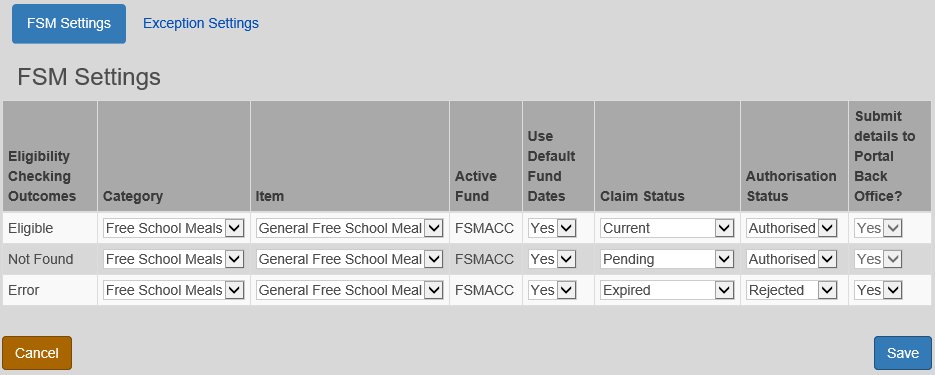
The selections in the above graphic and the steps below are examples. Each LA can configure its own FSM settings.
- For the required Eligibility Checking Outcome, select Free School Meals from the Category drop-down.
- Select General Free School Meals from the Item drop-down.
The Active Fund field defaults to FSMACC. - Select the Use Default Fund Dates option.
- Select a Claim Status. The Claim Status options are populated via v4 Client | Tools | Administration | LookupCodes | Table_ID0312.
- Select the Authorisation Status. These are system generated codes and cannot be edited.
- Select Submit details to Portal Back Office? as required. This column allows a Child’s details to be submitted to the Portal Back Office in accordance with the selection made.
The behaviour of selecting Yes /No in this column for each Eligibility Checking Outcome is as follows:- Eligible
This option is set to Yes by default and cannot be changed to No. The child/carer details will always be submitted to Portal Back Office for matching. The application will appear in G&B applications after matching process is complete. - Not Found
This option can be selected as Yes or No.
If Yes is selected and an FSM application is Not Found for a Child, the child /carer’s details will still be submitted to Portal Back Office for matching. - Error
This option can be selected as Yes or No.
If Yes is selected and an error appears on the Declaration Form, the child /carer’s details will still be submitted to Portal Back Office for matching. The application will still be accessible on the Portal for completion.
- Eligible
- Select the Administration area.
- Select the G&B page.
- Ensure the ECS Batch Validation tab is selected.
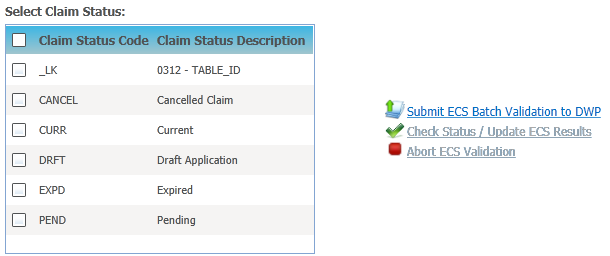
- Select the check box for the types of claims you wish to process.
- Click the Submit ECS Batch Validation to DWP hyperlink to display the ECS Batch Validation dialog.
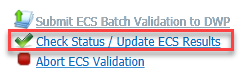
Click the Yes button to start the local validation of applications. - Click the Check Status / Update ECS Results hyperlink to view the progress of the checks.
If you receive an error message when trying to check eligibility, you can try to troubleshoot the issue.
If the DWP has not finished processing the records, the current status of the ECS batch submission is displayed:
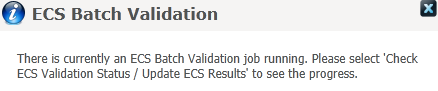
There is no indication of the progress of the validation and there is no automatic notification when the process is complete. Therefore, you should click the Check/Status/Update ECS Results hyperlink periodically until the status is returned as Complete.
- If the ECS Validation is completed:
Click the OK button to enter new review dates.- Enter a Pending – Next Review Date.
When saved, this will update any records that were found to be ineligible for FSM with the entered review date. If left blank, the existing review date for the ineligible records is unchanged. - Enter a Current – Next Review Date.
When saved, this will update any records that were found to be eligible for FSM with the entered review date. If left blank, the existing review date for the eligible records are unchanged. - Select the Claim Status you want to assign to each type of processed claim, if required.
- Select the Authorise current claims? check box to update the authorisation status of all eligible records to Authorised, if required.
- Enter a Pending – Next Review Date.
- If you need to stop the processing of the claims, you must abort the validation.
Click the Abort ECS Validation hyperlink to display a confirmation dialog.
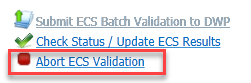
Click the Yes button to cancel the validation. You can now submit a new ECS batch validation job to the DWP.
Troubleshoot an ECS Validation Failure
If G&B cannot connect to the ECS Validation service at the DWP, an error message similar to the following, is displayed.
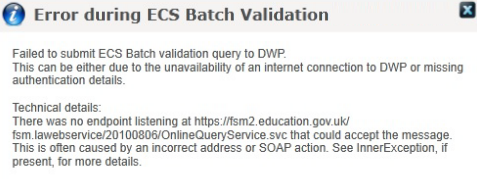
Generally, these errors can be resolved by checking the following:
- Ensure that the system you are connecting from has access to the Internet and is not being blocked by a firewall or proxy.
- Ensure that ECS related details entered on the Applications | Administration | Module Behaviour Options tab are entered correctly.