
Edit Ranks
Own Admissions Authority (OAA) schools can use the School Admissions Portal to rank students and, if applicable, add or remove students from bands.
For users who are mapped to OAA bases, only Applicant preference reasons will be shown for Catchment, Feeder and Distance.
For users who are not mapped to OAA bases, only LA preference reasons will be shown for Catchment, Feeder and Distance.
The version of the Applications page displayed to OAA schools features the same Show/hide columns and Download functions that non-OAA schools see. However, OAA schools see additional buttons, enabling them to Choose sort order, Rank list in current order, Assign to band and Remove from band.
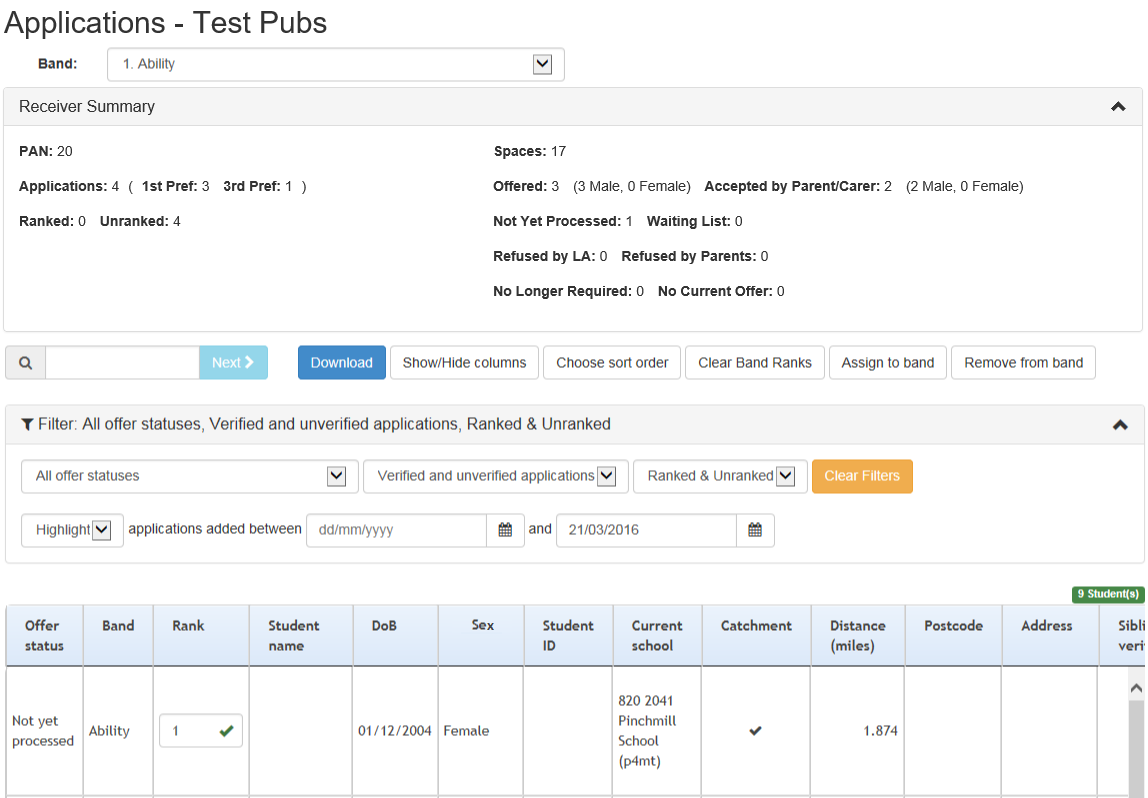
The School Admissions Portal enables you to edit student ranks in two ways. You can assign ranks either by entering rank numbers manually or by sorting the list of students a particular way and then clicking the Rank list in current order button.
You can only edit ranks for transfer groups that do not have the Prevent OAA Ranking Online check box selected in A&T Back Office | Process | Transfer Groups. This flag enables you to ensure that ranks are not updated at an inappropriate time .
For more information on the Prevent OAA Ranking Online flag, see the Transfer Group Details topic of the A&T Back Office help.
- From the School Admissions Portal home page, click the View Applications hyperlink for the transfer group you wish to view. The Applications page is displayed.
- If your school uses banding, select a Band from the drop-down menu. The list is filtered to display only the students in that band.
- If required, use the controls on the Filter panel to filter the list of studentsfilter the list of students.The following filters are available:
- Offer status
- Application verification status
The verification status filter is not displayed if Hide Application Verification is selected for the transfer group. For more information on the Hide Application Verification check box, see the Transfer Group Details topic of the A&T Back Office help.
- Student rank status (i.e. whether a student is currently ranked or not)
- Date of addition
Use the Highlight drop-down menu to select whether you want to filter the list by the selected date range or highlight the applications that were added within that range instead. - Late applications
Only displayed if at least one non-withdrawn preference for the receiver is marked as late.
- Choose from the following options:
- Rank applications
If you selected an in year transfer group, select an NCY from the All NCYs drop-down menu. You cannot edit ranks in an in year transfer group unless an NCY has been selected.You can only rank students who are directly assigned to the currently selected band. Students associated with child bands are displayed when their parent band is selected, but their rank is not editable unless the child band itself is selected from the Band drop-down menu.

-
- Assign Ranks ManuallyAssign Ranks Manually
To rank students manually:
- For each student you wish to rank, click inside the Rank field and enter a rank number.
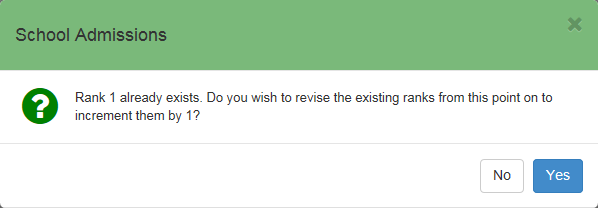
If you enter duplicate rank numbers, a dialog displays asking whether you wish to increment all subsequent ranks by 1. If you select No, you must enter a non-duplicate rank number for the affected student.
You can change the order that students are sorted in using the Choose sort order dialog. Click the Choose sort order button to display this dialog.
- If applicable, repeat for any other bands in which you wish to rank students.
- For each student you wish to rank, click inside the Rank field and enter a rank number.
- Bulk Rank ApplicationsBulk Rank Applications
You can only rank applications in bulk if no ranks have been added previously. If required, you can use the Clear Bank Ranks button to delete any previous ranking information.
To rank applications in bulk:
- If required, sort the list of applicationssort the list of applications.
- Click the Choose sort order button to display the Choose sort order of applications list dialog.
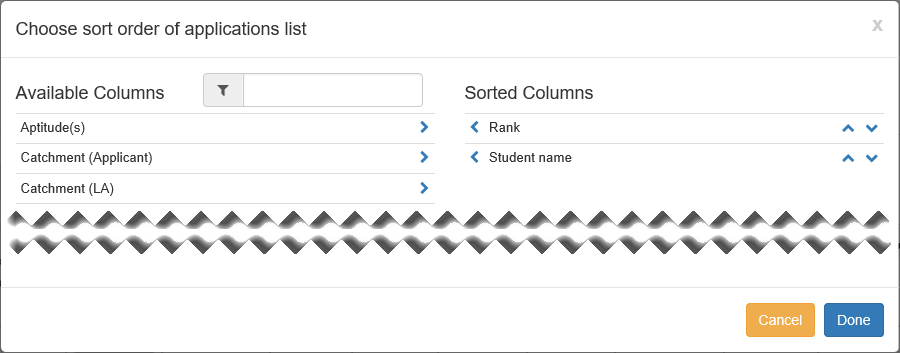
- Within the Available Columns list, select the column headings you wish to sort the applications by. Selected headings are moved to the Sorted Columns list.
To remove a column header from the Sorted Columns list, click on the header text.
- Use the arrows to move the headings in the Sorted Columns list to the order you wish to sort in.
- Click the Choose sort order button to display the Choose sort order of applications list dialog.
- Click the Rank list in current order button. A confirmation dialog is displayed.
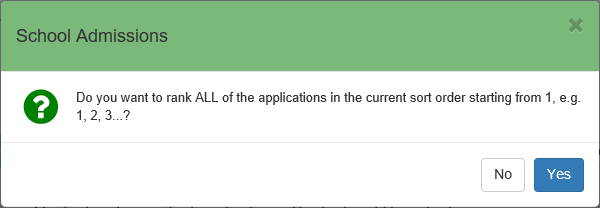
- Click the OK button to rank the applications in their current sort order.
If you filtered the list, only the currently displayed applications are ranked. - If applicable, repeat for any other bands in which you wish to rank students.
- If required, sort the list of applicationssort the list of applications.
- Assign Ranks ManuallyAssign Ranks Manually
- Add or remove students from a band
-
- Assign Students to a BandAssign Students to a Band
To assign students to a band:
- Select the band to which you want to assign students from the Band drop-down menu.
- Click the Assign to band button to display the Assign students to band dialog.
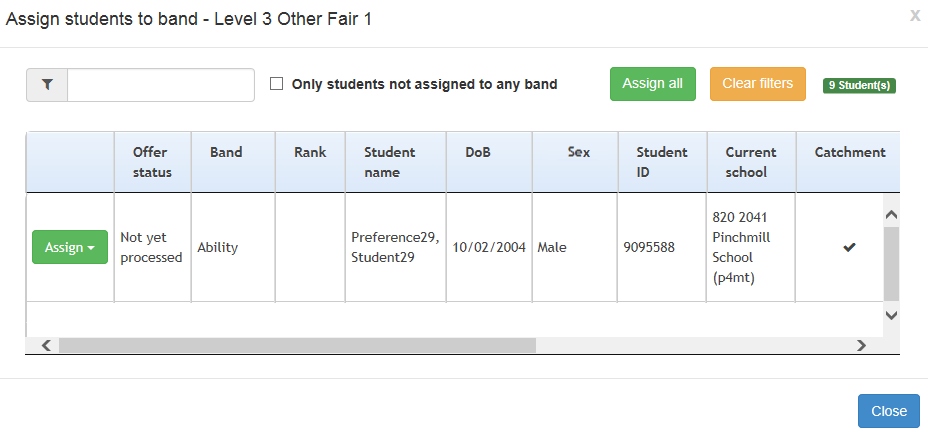
The Assign students to band dialog contains a list of students who meet all of the following criteria:- Already has a preference for the selected receiver, but is not assigned to the selected band.
- Has an application that is not withdrawn
- Is not inactive with an inactive reason that has the internal code 'DEC' – Deceased.
- Filter the list of students if required:
- Enter a name into the search field to filter by name
- Click the Only students not assigned to any band check box to display unbanded students only.
- Click the Assign button and select Assign to band from the drop-down menu, for each student you want to add to the selected band.
- Remove a Student from a BandRemove a Student from a Band
You can use the School Admissions Portal to remove students who meet all of the following criteria from a band:
- Band Offer Status is not Place offered or Accepted by Parent/Carer (i.e. CHOICES_BANDS.OFFER_STATUS is not one of O, Y, A or P).
- Has an application that is not withdrawn.
- Is not inactive with an inactive reason that has the internal code DEC – Deceased.
To remove a student from a band:
- From the Band drop-down, select the band from which you want to remove students.
- Click the Remove from band button to display the Remove from band dialog.
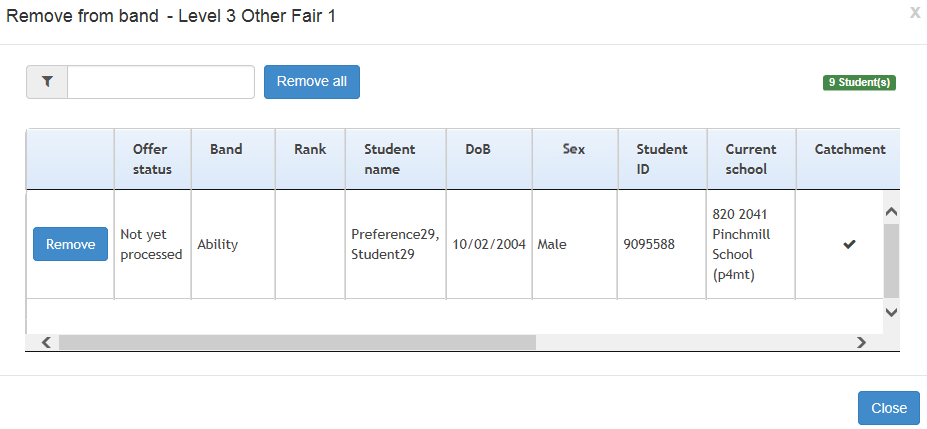
- Click the Remove button for each student you want to remove from the band . A confirmation dialog is displayed.
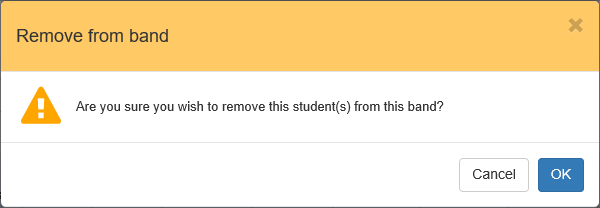
- Click the OK button to remove the student from the band.
When a student is removed from a band, their main offer status for that preference is, where necessary, recalculated. The new status takes into account the student’s offer status in any remaining bands to which they are still assigned. If this recalculation causes the student’s main preference offer status to be updated, then the Preference History is also updated to reflect the offer status change.
- Assign Students to a BandAssign Students to a Band
- Rank applications