
Services
Creating services and service categories enables you to put services into logical groups, for example, Social Services or Youth Services.
Adding a Service Category
Select Focus | Services | Service Categories to display the Service Category Enquiry dialog.
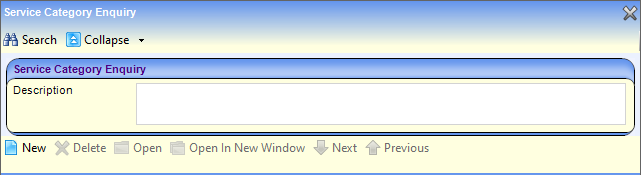
- Click the New button to display the Service Category Definition dialog.

- Enter a category Code of up to five characters.
- Enter a category Description, for example:
Code Description SOCSV Social Services - Click the Save button to make the category available for selection when creating provision records.
Adding a Service to a Service Category
- Select Focus | Services | Services to display the Service Enquiry dialog.
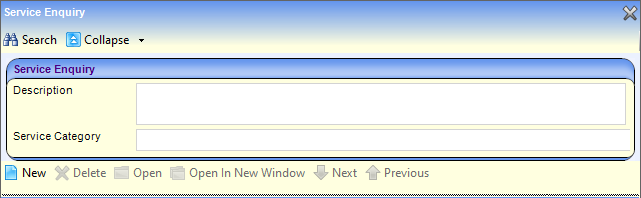
- To create a new service, click the New button to display the Service Definition dialog.
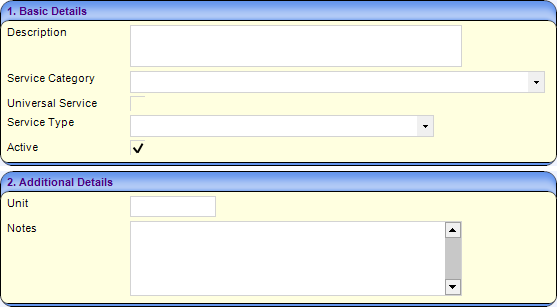
- In the Basic Details panel:
- Enter a Description of the service.
- Select a Service Category.
A service can be included in multiple service categories.
- Tick the Universal Service check box, if the service is available to all students.
This check box must contain a true value (tick) or false value (cross). If you save the record and this check box is empty, it defaults to a tick.
- Select a Service Type, which is a DfE requirement for Crystal reporting.
- Click the Save button.