Online/Client Administration
SQL Mail Merge

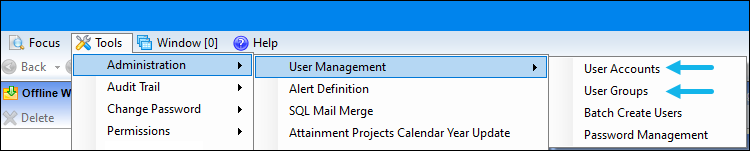
The primary function of this facility is to create a file of exported data on the basis of an SQL Select Query, typically for use in a Mail Merge Word document but this is not the exclusive use. The data may also be used for analysis in Microsoft Excel. Only SQL Statements that begin with the word Select are allowed; all other commands such as Update, Insert or Delete are prohibited and will fail validation. Statements separated by a semi-colon will also fail validation. Once the file is created you can export the data to a nominated file folder on the system’s network or to a local machine. The System Administrator can nominate which Users and which User Groups may initiate the Query.
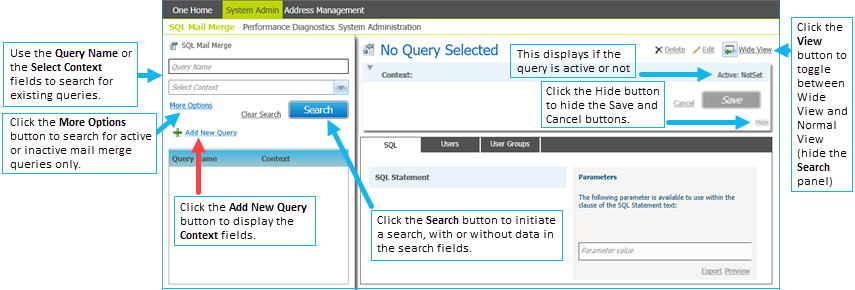
Search for an SQL Mail Merge query
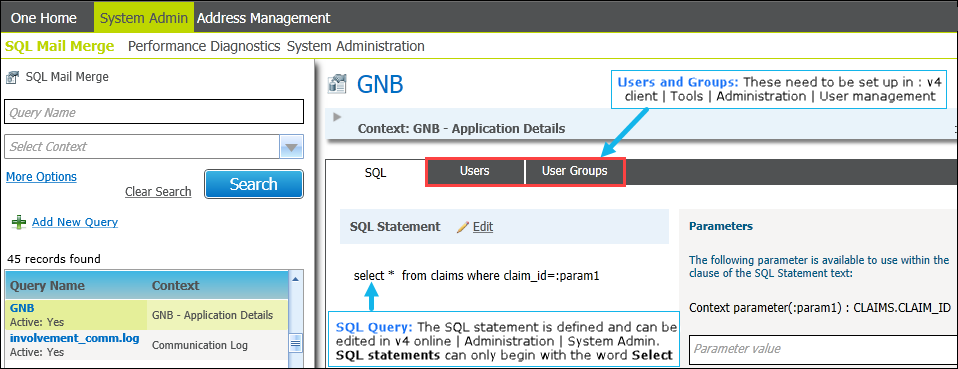
Log in to v4 Online and click the Administration button to display the System Admin tab, SQL Mail Merge is the default page. From here you can search for existing queries or add a new query.
Add a new SQL Mail Merge query
SQL should be carried out by a System Administrator who is fully aware of its implications. MRI Education cannot accept responsibility for data problems caused as a result of following this advice incorrectly.
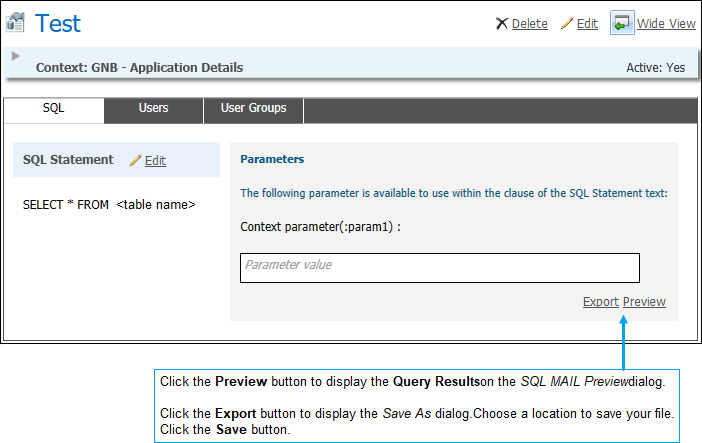
- Enter the select query in the SQL Statement box (only Select statements are allowed). To help you with the query, a list of parameters displays in the Parameters panel. The list is populated when the Context is selected.
- If required, enter a Parameter value.
- Click the Save button.
Add Users
- Select the Users tab to display the Users list.
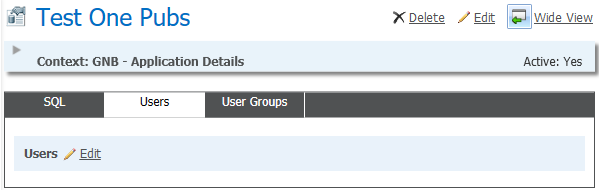
- Click the Edit button to display the Users browse.
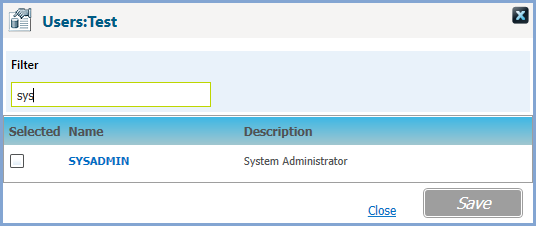
- To filter the list, enter a User Name.
- Select the check boxes for the users who can initiate the SQL query. If you wish to remove a user from a query at a later date, deselect the check box.
- Click the Save button.
- Click the Close button to return to the Users list.
Add User Groups
- Select the User Groups tab to display the User Groups list.
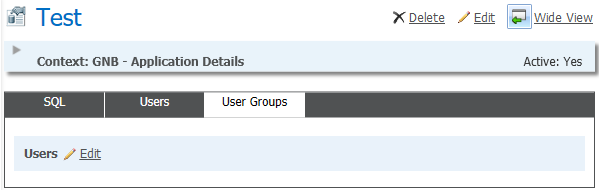
- Click the Edit button to display the Groups browse.
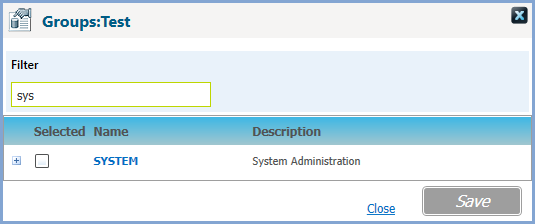
- To filter the list, enter a Group Name.
- Select the check boxes for the groups who can initiate the SQL Query. If you wish to remove a group form a query at a later date, deselect the check box.
- Click the Save button.
- Click the Close button to return to the User Groups list.
SQL Mail Merge Button
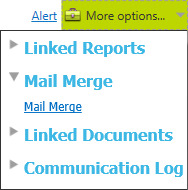
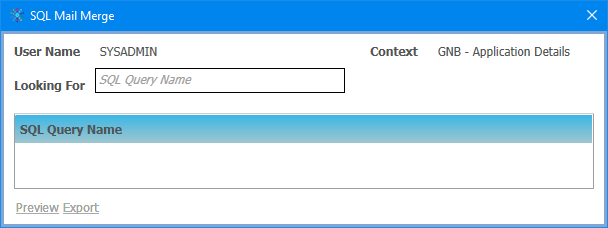
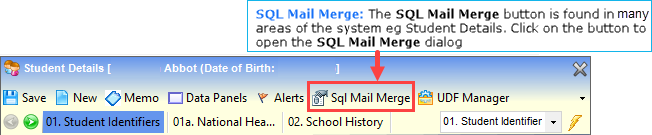
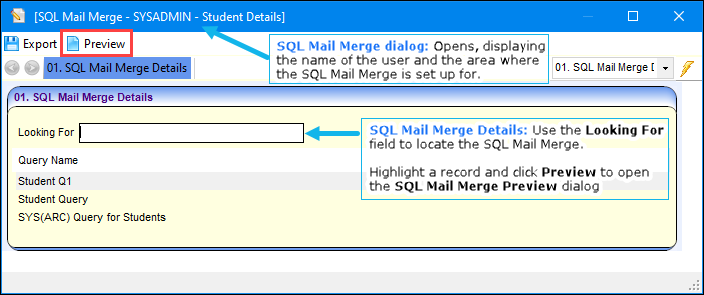
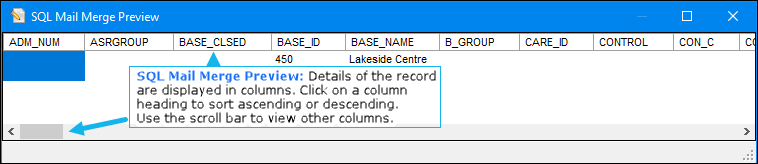
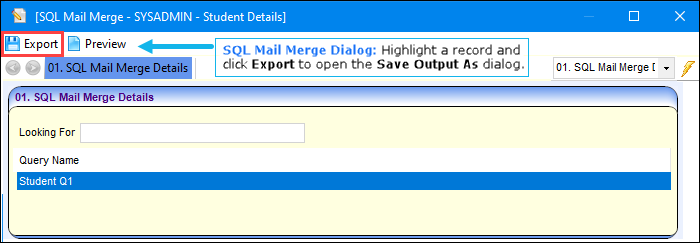
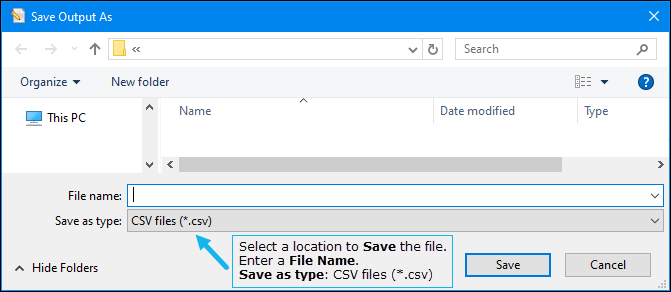
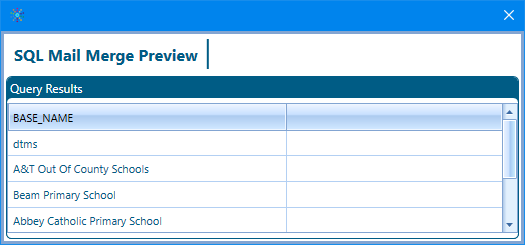
The SQL Mail Merge button displays in many areas of v4 Client and v4 Online. Click the button to display the List of SQL Mail Merges dialog. A Preview button is available to enable you to view the query results. The Export button enables you to save the files and export the queries.