
Maintain Discount Defaults
Default discount values can be assigned to a set of schemas and base types. You can associate invoice points to schemas via Administration | Invoice Points and any transactions created under that invoice point will have the discount defined in the schema applied. Similarly, when the school is created as an invoice point, it will inherit all discounts defined for the base type of the school.
Base types are defined in v4 Client | Tools | Administration | Lookups via Base Types Lookup Table ID: 0070.
There is a hierarchy of discounts as follows:
- A specific discount percentage can be applied to a specific invoice point. If this is present then this takes precedent over any other discount types that apply to the invoice point.
- The invoice point is associated with a discount schema, which applies a percentage discount.
- The invoice point is a Base and there is a discount percentage associated with the base type. This only applies if there are no other types of discounts for this invoice point.
A maximum of 10 discount schemas can be recorded and applied to invoice points at any given time. You can add multiple invoice points to a schema via the Invoice Points tab.
It is not possible to add any further schemas.
To manage discount defaults:
- Select the Administration area.
- Select the Discount Defaults tab to display a list of existing defaults.
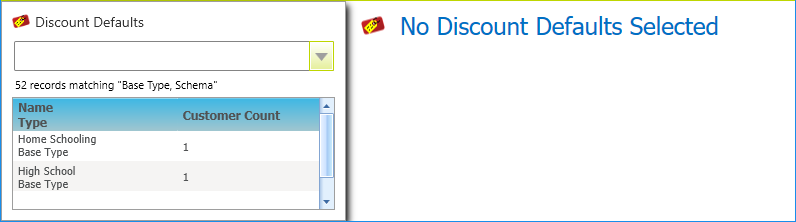
Each base type is listed as well as ten schemas, with a default name of SCHEMA 01 - SCHEMA 10. These schema names can be edited to make them more meaningful e.g. 25% discount, or Gold service - 25%.
To filter the list, select a Defaults Type of either Base Type or Schema from the drop-down.

- Select a discount in the list to display the details.
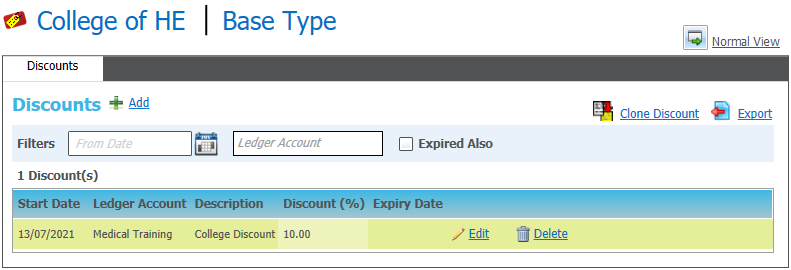
Manage Discounts
To manage discounts:
- Select the Discounts tab.
- Choose from the following options:
Add a discount- Click Add.
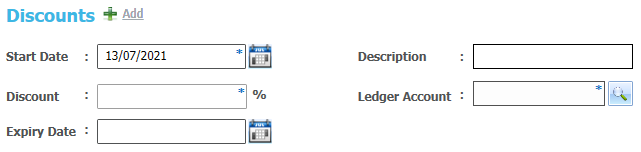
- Enter details as required.
- Click the Ledger Account browse to display the Select Ledger Accounts dialog.
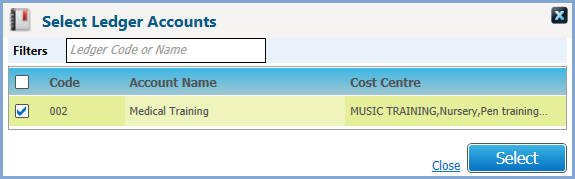
- Select one or more ledger accounts.
- Click Edit of the required discount.
- Amend details as required.
- Click Delete of the required discount. A confirmation message is displayed.
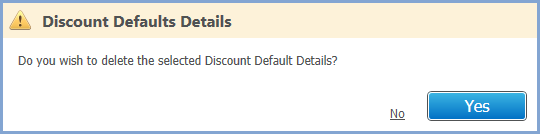
- Click Yes to delete the record.
- Click Add.
Manage Invoice Points
If the Defaults Type is schema, you can select the Invoice Points tab to display associated invoice points.
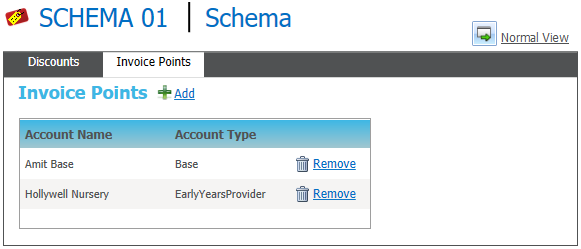
To manage invoice points:
- Select the Invoice Points tab.
- Choose from the following options:
Add an invoice point- Click Add to display the Select Invoice Point(s) dialog.
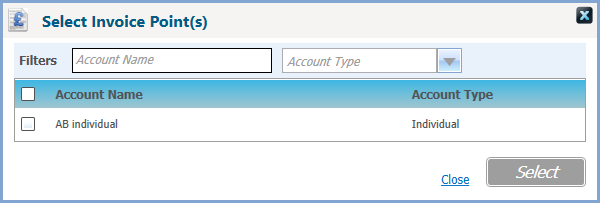
- Select the required invoice point(s).
- Click Remove of the required invoice point. A confirmation message is displayed.
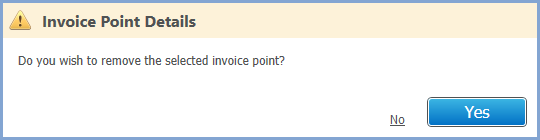
- Click Yes to remove the record.
- Click Add to display the Select Invoice Point(s) dialog.