Manage a Failed Request
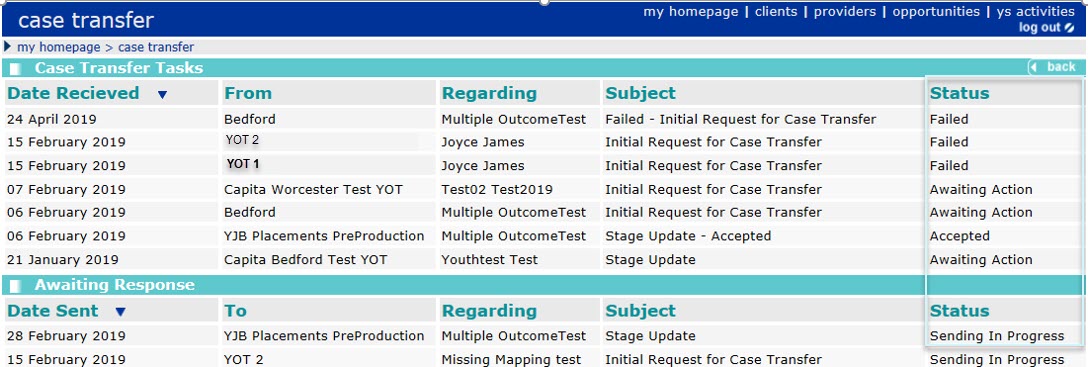
A Request or stage update you are sending can fail for various reasons
Follow the steps below to view and resolve what has caused the case transfer failure:
- Select the case that has a Failed status.

- The reason for the failure is displayed in the Task screen.
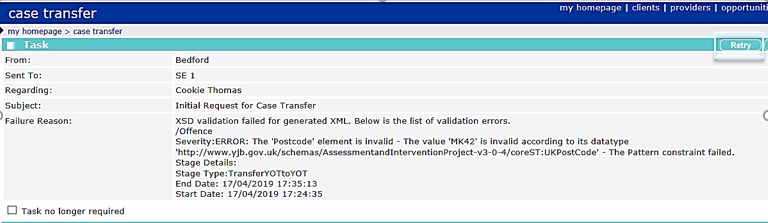
- The row titled Failure Reason shows the reason the request has failed.
If you require local support or Education Service Desk support to help resolve the issue, please quote the full details of the failure reason when logging an incident.
- Amend the fault if required before re-sending.
- If you no longer need to send the transmission, place a tick in the check box next to: Task no longer required in the bottom left hand corner of the screen, to remove it from the list of outstanding Case Transfer Tasks.
- You can select Retry, from this screen if you would like to resend again from this location without navigating into the young person’s case.
- The case transfer screen will again display a status of Sending In Progress.