Activities
Select Activities from the left-hand menu for a specific member (child or carer) to display a list of all events attended by this member. To see a complete list of all events attended by all the members of the family, select Current Family | Activities | Existing Contact.
The list shows the Activity Name, the Date of the activity and the member's Attendee Status for that event. When all the results for a family are displayed, each member’s name, type and age are also included.
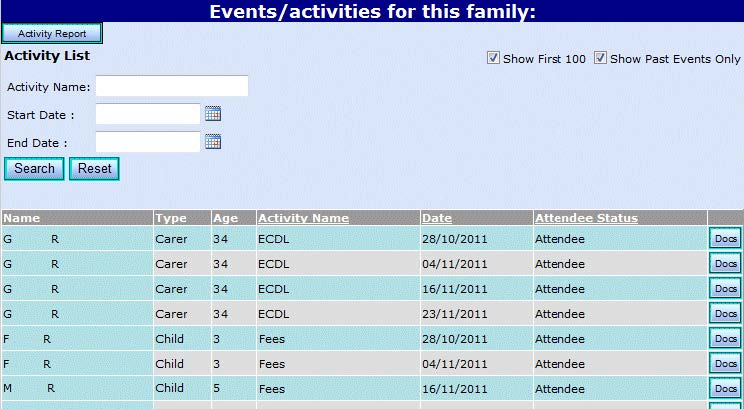
Filter the list by entering part or all of an Activity Name, and a date range. Select the check boxes in the upper right-hand corner to limit the number of activities listed to the first 100 results or to show only past events.
All a family’s events and activities are referred to as Contacts. Select Current Family | Activities | New Contact to add a new activity for a child or carer. When adding the new activity, you can choose which family members it applies to. You cannot add a new activity via Child | Activities or Carer | Activities.
Add a New Contact
Select Current Family | Activities | New Contact to display the Add Family Contact screen.
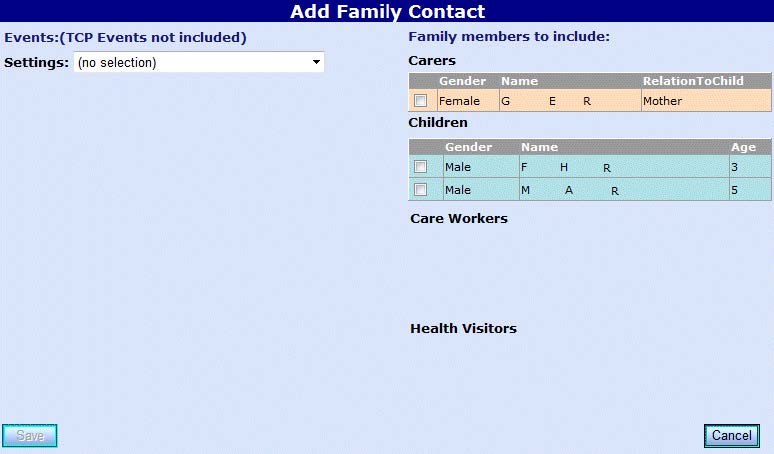
To add a new contact, you first need to search for the events that make up the contact, then select the family members who are taking part and any care workers or health visitors who are involved.
- Select the setting at which the activity is held from the Settings dropdown. The Home Visit check box and Event Type dropdown list are now available:
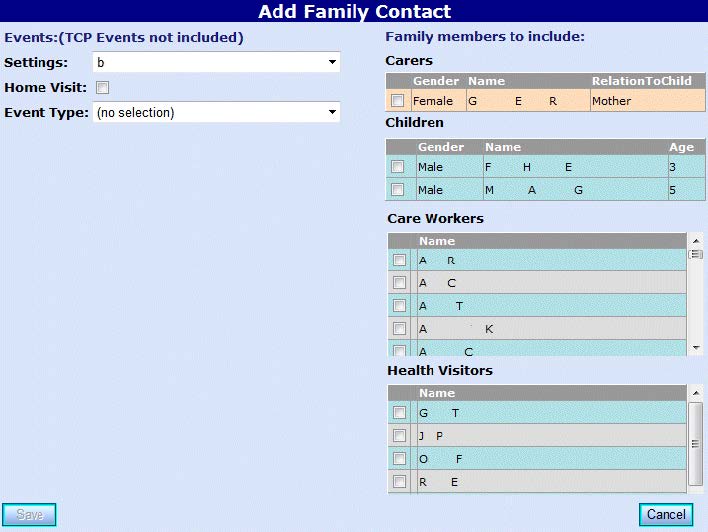
- Select the Home Visit check box if appropriate, and select the Event Type from the dropdown list. The Date Range fields are now available.
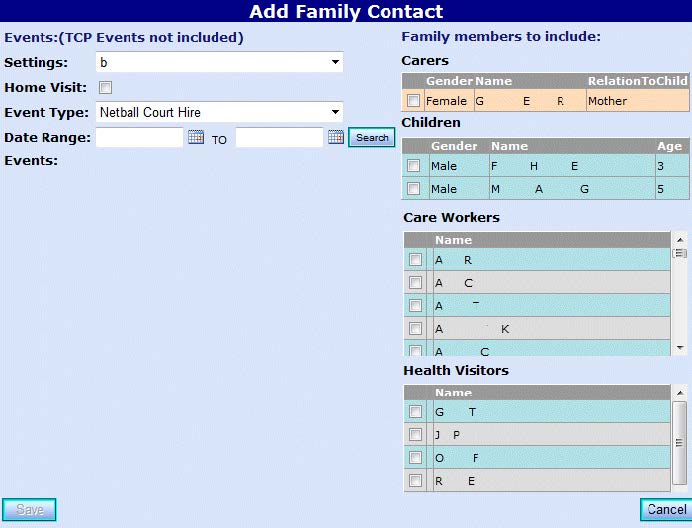
- Enter the Date Range of the contact and click Search to display a list of events at this setting that fall within the date range. An information message is displayed if there are no events for the selected date range.
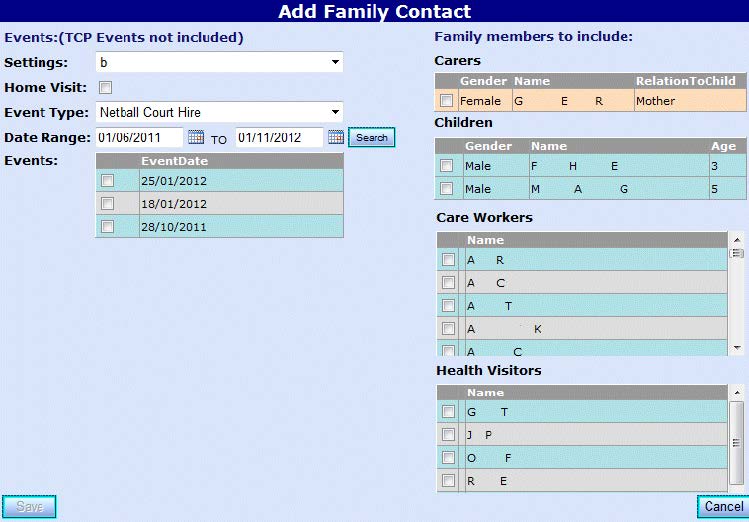
- To add one or more family members, care workers or health visitors to an event (or multiple events), select their names and the event dates to which you wish to add them, and click Save.
Linked Documents
A document can be linked to an activity by clicking the Docs button for the activity, to display the Documents panel, then uploading it to eStart. Only files that meet the following requirements can be uploaded:
- Files must be smaller than 2MB
- Supported file types are: .doc, .docx, .xls, .xlsx, .txt, .ppt, .pptx, .pdf, .pic, .jpg, .jpeg, .bmp, .jpe, .jfif, .dib, .gif, .tif, .tiff, .png
To upload and link a document, click the Browse button to locate the document then click the Upload button.
Each linked document is listed, showing the name and document type. Click a linked document name to open it.
An uploaded document can be removed from the activity record by clicking the Delete button.

Activity Report
The Activity Report contains details of all activities attended by a family, carer or child, or at which they are registered.
- Click the Activity Report button to display the date range.
- Select a different From and To date if required. The report contains all activities between these dates.

- Click the View Report button to generate the report.
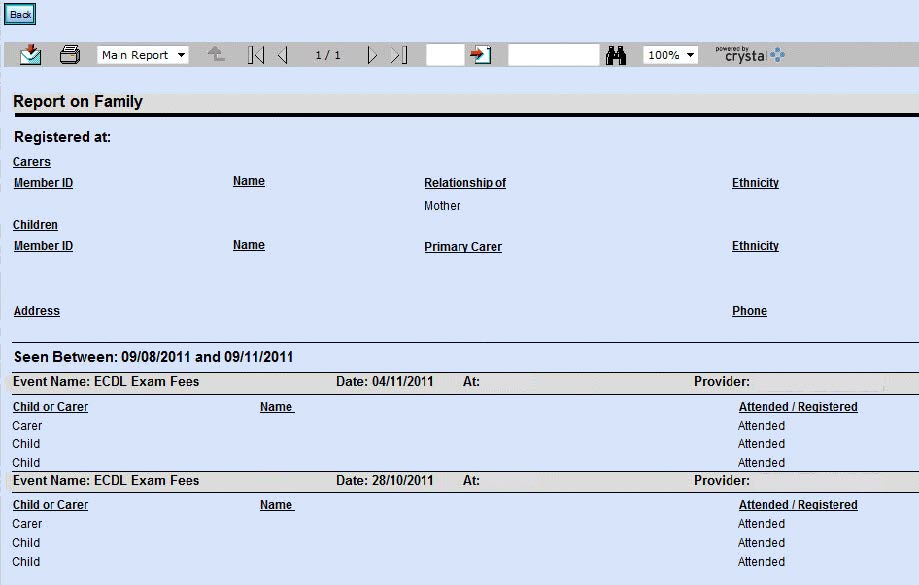
The report displays identifying information for the selected family, carer or child and details of their activities within the chosen date range.