
Online Common Functionality
Using the SQL Mail Merge Button
| The primary function of the SQL Mail Merge facility is to create a file of exported data on the basis of an SQL Select Query. Only SQL statements that begin with the word Select are allowed; all other commands such as Update, Insert or Delete are prohibited and will fail validation. The SQL Mail Merge button is available in many areas of v4 Online. Click the SQL Mail Merge button to preview and export existing queries. SQL Mail Merge is set up via v4 Online | Administration | System Admin | SQL Mail Merge. |
SQL Mail Merge in CSS and Governors
- Click the SQL Mail Merge button to display the SQL Mail Merge Search Filters dialog.

Existing alerts for the entity display in the List of SQL Mail Merges browse.
The Context is populated according to the entity where the SQL Mail Merge button was selected. - Enter the SQL Query Name in the Looking For field to search for the required SQL Mail Merge.
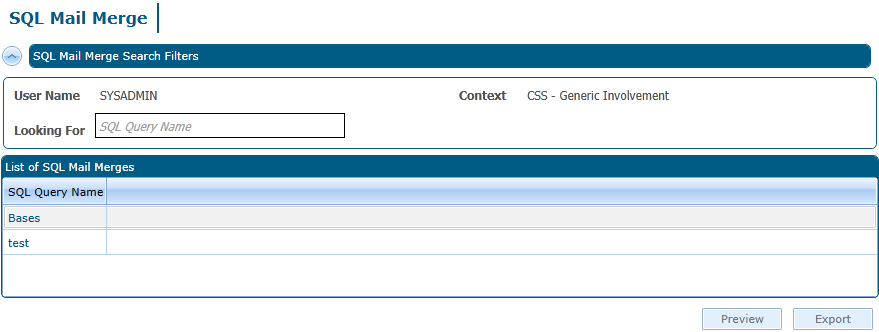
- Click the Export button to display the Save As dialog.
- Select the location to which you wish to save the SQL Mail Merge and click the Save button. The file saves as a .CSV file.
| Click the Preview button to display the SQL Mail Merge Preview Query Results dialog. You may need to use the scroll bar to view all of the results. |

SQL Mail Merge in Exclusions
- Click the SQL Mail Merge button to display the SQL Mail Merge dialog.

Existing alerts for the entity display in the SQL Query Name browse.
The Context Name is populated according to the entity where the SQL Mail Merge button was selected. - Enter the SQL Query Name in the Looking For field to search for the required SQL Mail Merge.
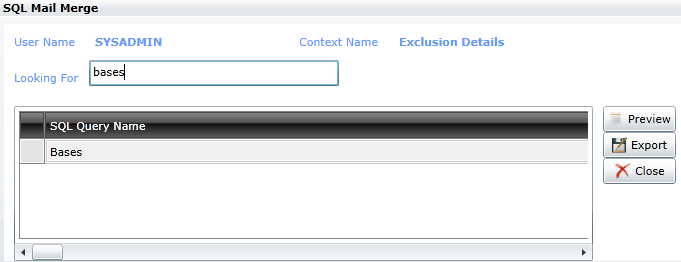
- Click the Export button to display the Save As dialog.
- Select the location to which you wish to save the SQL Mail Merge and click the Save button. The file saves as a .CSV file
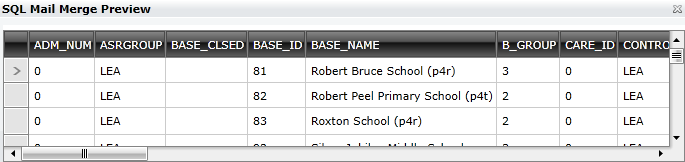
| Click the Preview button to display the SQL Mail Merge Preview dialog. You may need to use the scroll bar to view all of the results. |
SQL Mail Merge in A&T Back Office / Bases / Applications / Music Tuition / Training Manager
- Click the Mail Merge link to display the SQL Mail Merge Search Filters dialog.
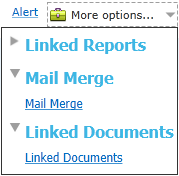
Existing alerts for the entity display in the SQL Query Name browse.
The Context is populated according to the entity where the Mail Merge link was selected. - Enter the SQL Query Name in the Looking For field to search for the required SQL Mail Merge.
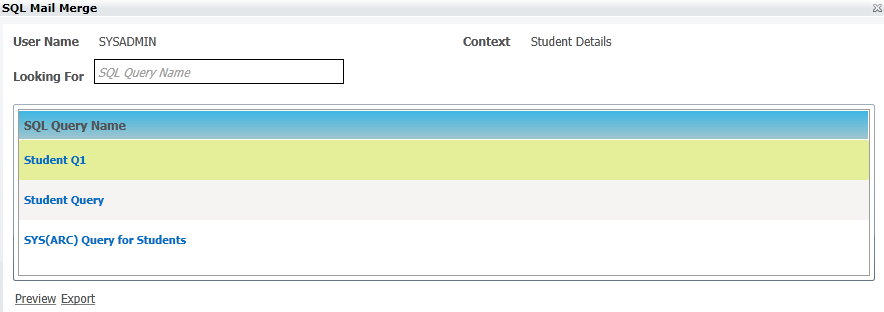
- Click the Export button to display the Save As dialog.
- Select the location to which you wish to save the SQL Mail Merge and click the Save button. The file saves as a .CSV file.
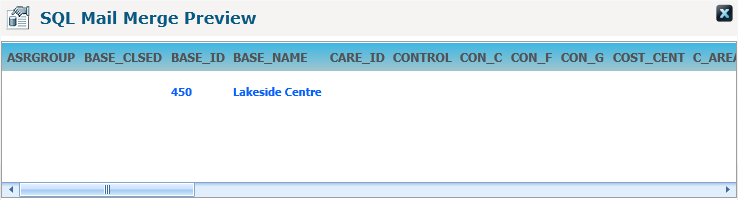
| Click the Preview button to display the SQL Mail Merge Preview dialog. You may need to use the scroll bar to view all of the results. |
 Related Reference Guides: Related Reference Guides:
|