
Send a Case Transfer Request
Initiate a Transfer
To send a case transfer request to another YOT or the SE:
- Access the Client Summary screen for the child /young person with an AssetPlus stage.
-
In the AssetPlus panel the current Stage Status must be Completed. Click the Initiate Transfer button.

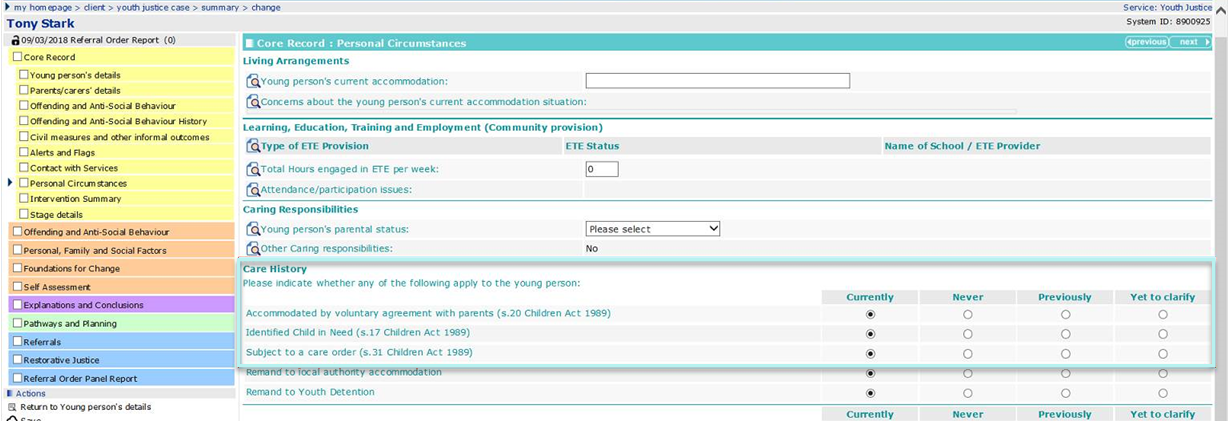
The system now checks if the young person is a Looked After Child (LAC). In AssetPlus, there is a series of questions which define a young person as LAC. These details are available in the Stage Details | Core Record | Personal Circumstances section:
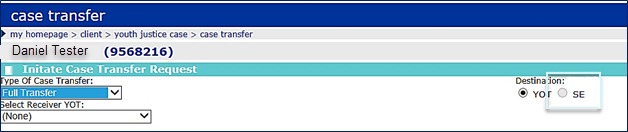
- The Case Transfer page now opens.
-
Type of Case Transfer
If the young person is recorded as Looked After Child (LAC) within the latest completed AssetPlus stage, the Case transfer type of Caretaking Arrangement is selected automatically and cannot be changed. If the young person is not LAC, the option for Full Transfer will also display.
Caretaking Transfers can be set up with other YOTs, or the Secure Estate (via YJB Placements).
Full Transfers can only be performed with other YOTs (not the Secure Estate).
-
Destination
The destination for the transfer is either YOT (Youth Offending Team) or SE (Secure Estate). If Full Transfer is selected, then YOT is auto selected and the SE option is greyed out
- Select Receiver YOT/SE
For a submission to Placements, select SE and YJB Placements. If the young person is remanded or sentenced to custody, the Caretaking relationship with YJB Placements will remain in place and AssetPlus updates are sent to and received from the relevant Secure Establishment via YJB Placements.
For a transfer to another YOT, select YOT and the relevant YOT destination for the transfer.
- Click Continue.
- The AssetPlus Case Transfer Request screen opens, displaying the following message:
‘Request to initiate Case Transfer is being processed.’
-
Click Continue to return to the Client Summary screen.
Once the request has been sent the Initiate transfer button is no longer available on the Client’s AssetPlus panel.
Once you have requested a transfer, a Case Transfer Task is created and can be accessed on my homepage in the Case Transfer Task panel. The status will be Awaiting Response.
Related topic: