
Print and Export Stages
To print a section or subsection of an AssetPlus stage, you need the YJ Asset Plus Section Report permission. If you are unable to print from an AssetPlus stage, contact your system administrator. You can create a printer friendly view of some or all the sections in a stage, or you can export the selected sections as a PDF. If you want to print a paper copy of the stage, it’s easiest to create a printer friendly version and print from within your internet browser. If you need to email the stage details, it is easier to export the sections to PDF directly.
To print or export a PDF from a stage:
- Access the required client record.
- In the AssetPlus panel, click the Stage Name of the required AssetPlus stage to display the AssetPlus Stage Summary screen.
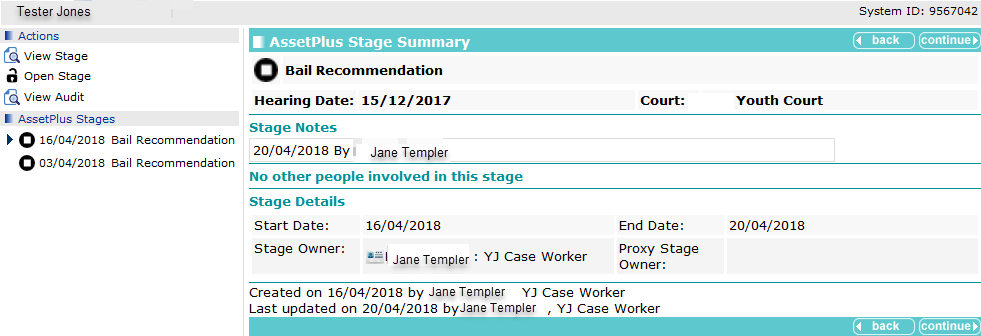
- Click the View Stage hyperlink to access the stage information.
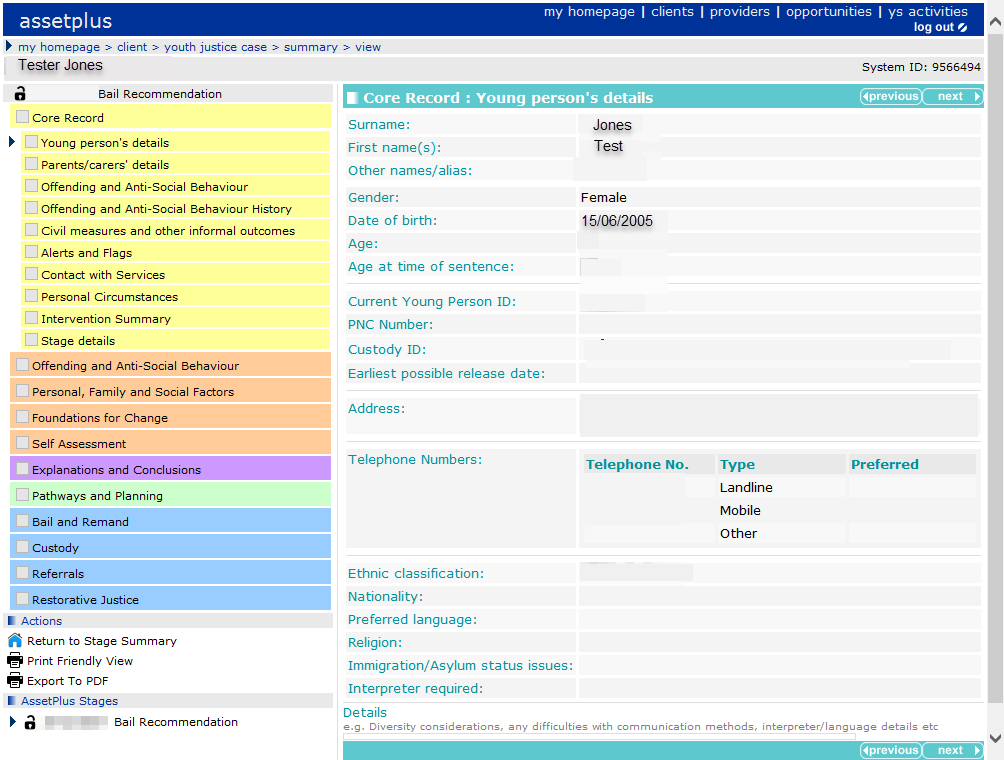
- To create a printer friendly view of the record:
- Click the Print Friendly View hyperlink to display the Select Sections to Print dialog.
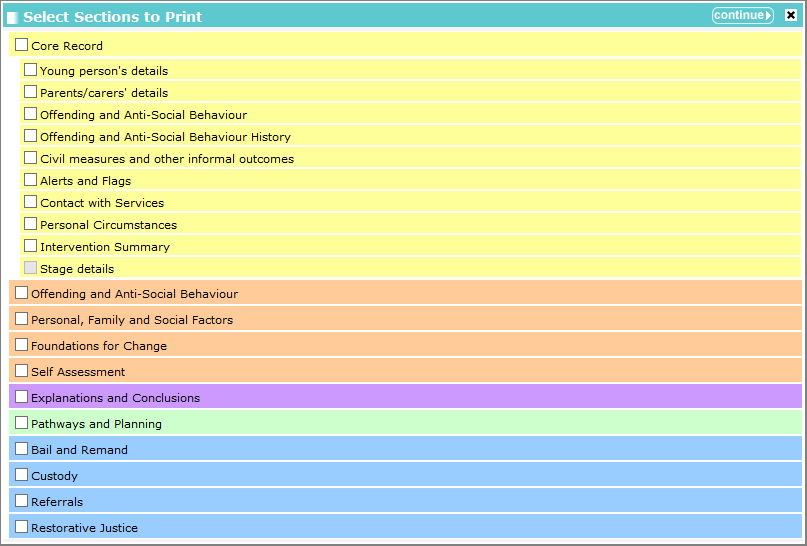
- Select the sections to you want to include in the printer friendly web page.
- Click continue to display the selected sections as a single page in a new browser tab or window.
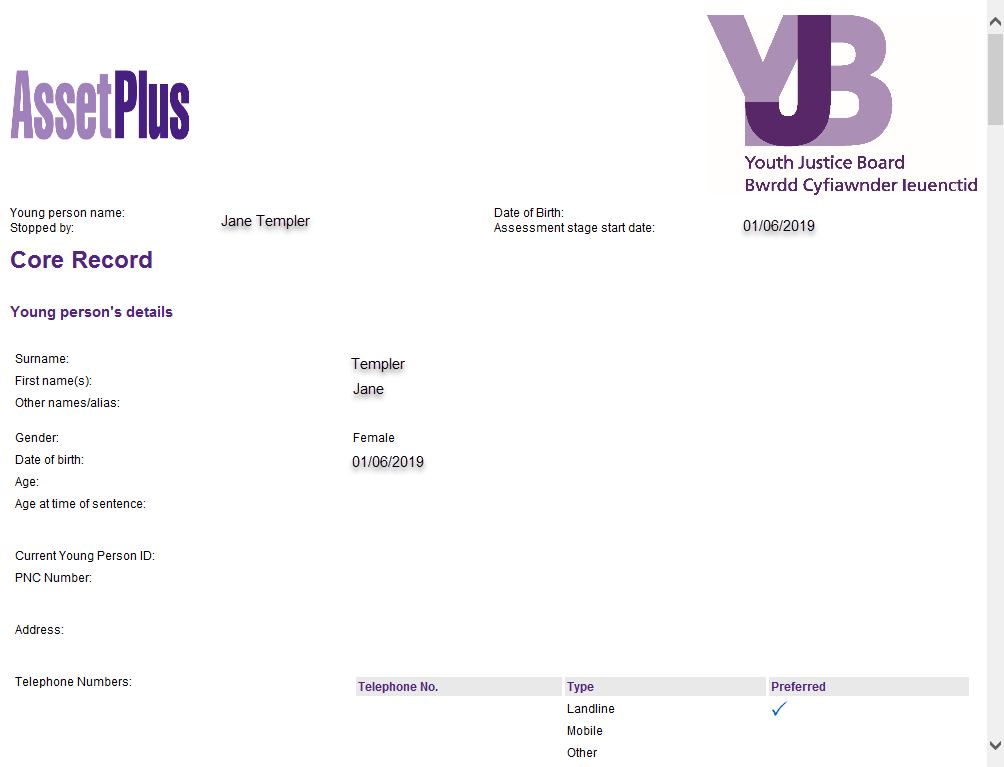
If required, use the browser’s print functionality to print the report.
- To create a PDF file of the record:
- Click the Export to PDF hyperlink to display the Select Sections to Print dialog.
- Select the sections to you want to include in the PDF file.
- Click continue to display the selected sections in a PDF. Depending on how your system is configured, the PDF might display in your web browser or in an external PDF viewer like Acrobat Reader.