The instructions on this page were different in the following release(s):
3.88 | 3.79
Edit E-App Settings
Release Note for Summer 2026 (3.89)
LAs can now configure phased transfer groups for late applications
E-Application settings for transfer groups are configured via Process | Transfer Groups | E-App Settings. Each transfer group can have different settings, which must be set before online applications open.
More information on E-Application Settings
- Select a transfer group.
- Select the E-App Settings tab.
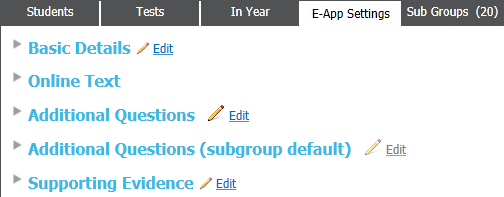
Choose one of the following options:
- Basic Details
The Basic DetailsBasic Details section of the E-Application Settings tab enables you to set parameters for the public-facing parts of A&T Online that are specific to a transfer group.Different sets of fields are displayed for in-year and normal phased transfer groups.
- Open the Basic Details section
- Click the Edit hyperlink to make the transfer group's online application details editable.
- Edit details as required.
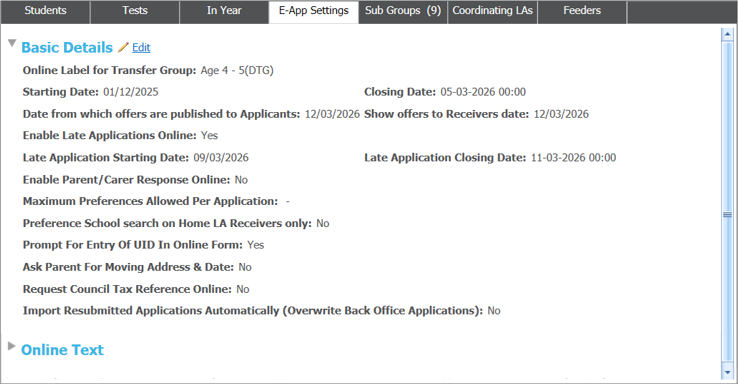
Late applications
Local Authority administrators can now easily manage late application windows within the system. Once configured, citizens using the Citizen Portal can see the option to select the relevant transfer group. They can then submit their applications even after the initial closing date has passed, provided it is within the newly defined late application window.
To enable late applications:
- Ensure an Online Closing Date is already configured for the transfer group.
Late applications can only be configured if an online closing date is present. - Select the Enable Late Applications Online checkbox.
- Define the Late Application Start Date, End Date, and End Time.
- The Late Application Start Date must be after the Online Closing Date.
- The Late Application End Date must be greater than or equal to the Late Application Start Date.
See Online Text to set up the confirmation email for late applications.
- Online Text
Online TextOnline Text enables you to enter the blocks of user-definable text that appear either on-screen or in emails sent to applicants through the application process.Welsh Local Authorities have the option to enter text in both English and Welsh and to choose the order in which these languages appear.
- Open the Online Text section
- Click the Edit hyperlink to display the Edit Transfer Group - E-Application Online Text dialog.
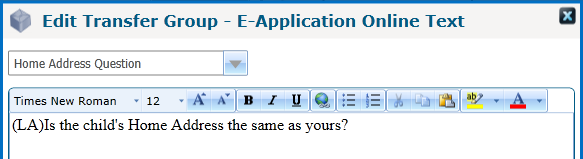
If your LA is Welsh, select whether you want to edit the English or Welsh text using the left-hand menu.
This option is not displayed to English LAs or EANIs (Northern Ireland). - Select the online text that you wish to edit from the right-hand menu.
Late applications
To set up the confirmation email:
- Ensure the Enable Late Applications Online flag is active.
- From the Online Text dropdown, locate the new Late Application Submission Confirmation.
- Select or create the standard communication text required for late applications.
If the custom text field is left blank, the system still sends the confirmation. It uses the standard Submission Confirmation instead. - Save the configuration to enable the automated confirmation email for that transfer group.
- Additional Questions
The Additional QuestionsAdditional Questions tab enables you to select additional questions to be displayed to applicants when applying for receivers in the selected transfer group.- Open the Additional Questions section.
A list of the additional questions currently selected for the transfer group is displayed.
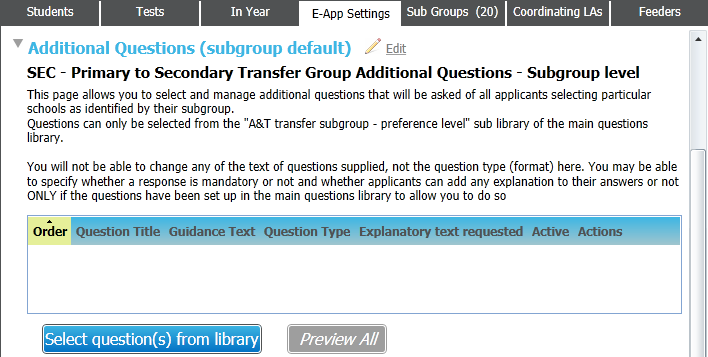
- Click the Select question(s) from library button to display the Question selector dialogue
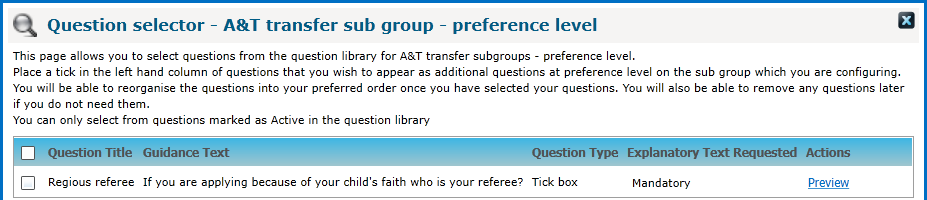
- Select the question(s) that you want to associate with the transfer groups using the checkboxes.
- Click the Preview link to display a single question in a new browser or Preview All to see the entire list.
Re-Ordering Additional Questions
- Open the Additional Questions section.
- Click the Edit hyperlink next to the heading to display the additional questions chooser in edit mode.
- For each question in the list, enter a number into the Order field.
If you enter a number that is greater that the number of questions in the list into the order field, then the relevant question is moved to the bottom of the list.
You cannot save the list of questions if one of the questions in the list has been made inactive at library level since being added. In this case, you should remove the question by clicking its Delete hyperlink.
- Open the Additional Questions section.
- Additional Questions (subgroup default)
The Additional QuestionsAdditional Questions (subgroup default) tab enables you to select a set of default subgroup-level questions to be displayed to applicants when applying for receivers in the selected transfer group.- Open the Additional Questions (subgroup default) section to display how to manage additional questions for Subgroup level
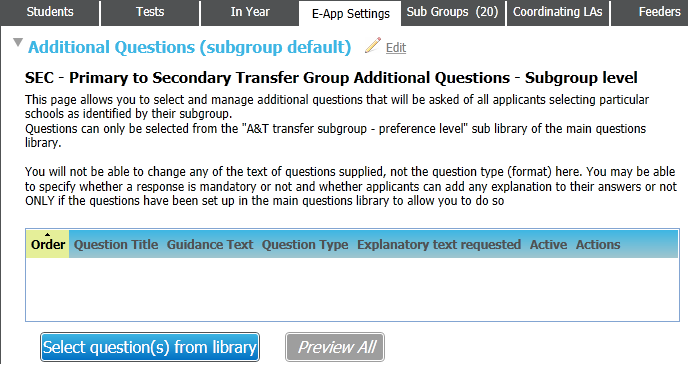
- Click the Select question(s) from library button to display the Question selector dialogue.
- Select the question(s) using the checkboxes.
- Click the Preview link to display the question in a new window or Preview All to view the entire list.
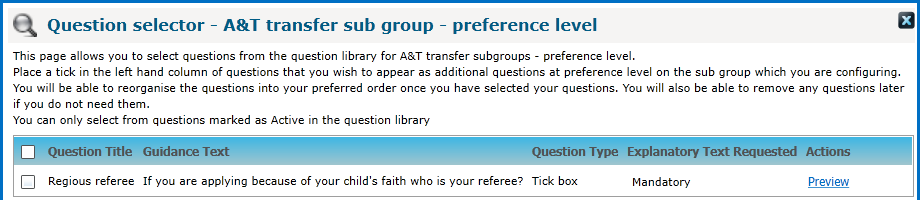
- Open the Additional Questions (subgroup default) section to display how to manage additional questions for Subgroup level
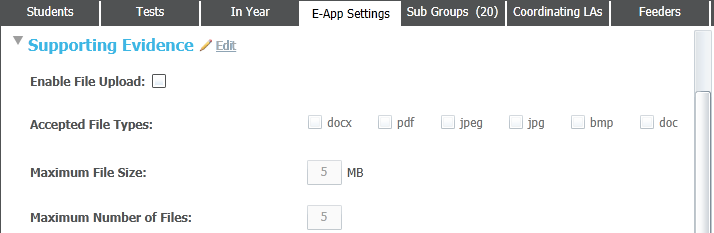
- Supporting Evidence
Supporting EvidenceSupporting Evidence enables you to specify what types of documents can be uploaded in support of applications.- Open Supporting Evidence.
- Click Edit to view available fields.