
Early Years
Log a New Communication
Log a New Communication
A new communication can be logged for a provider or a service.
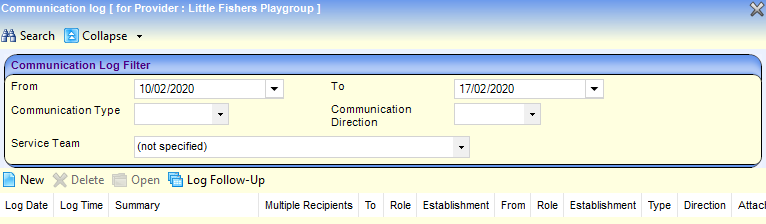
To log a new communication for a provider:
- Search for a provider via Focus | Early Years | Search for a Provider.
- Select a provider to display the Maintain Provider page.
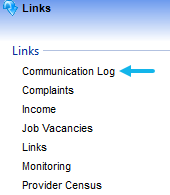
- Select the Communication Log link on the Links panel to display the Communication Log Filter page.
- Click the New button.
To log a new communication for a service:
- Search for a service via Focus | Early Years | Search Service Provision.
- Select a service to display the Maintain Service Provision page.
- Select the Communication Log link on the Links panel to display the Communication Log Filter page.
- Click the New button.
Log a New Email
- On the Basic Detail panel, select Email from the Type drop-down.

- Select a Direction from the dropdown.
- Click the Continue button.
- On the Communication Summary panel:
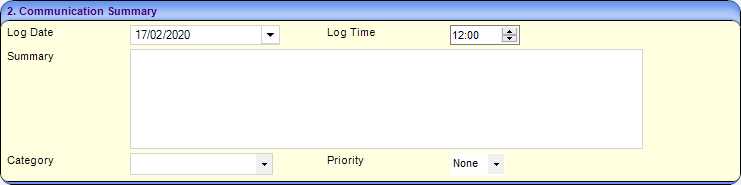
- Select Log Date from the dropdown calendar.
- Enter Log Time.
- Enter a Summary.
- If required, select a Category from the drop-down list (Table ID: 0427).
- If required, select a Priority from the drop-down.
- If required, enter a Memo.
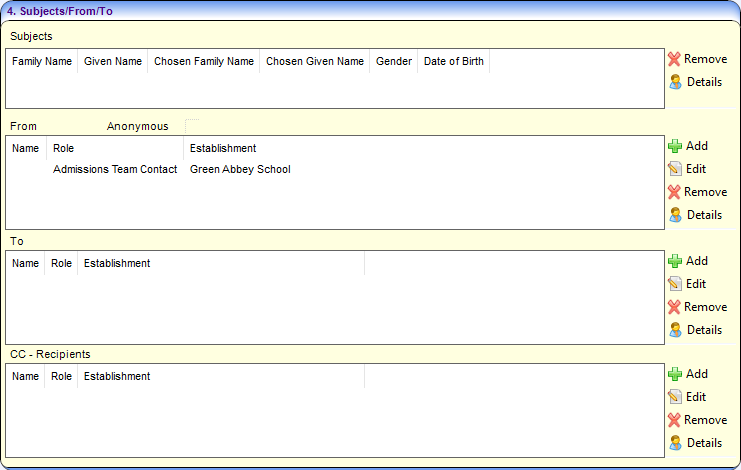
- On the Subjects/From/To panel, click the Add button to display the Person Enquiry.
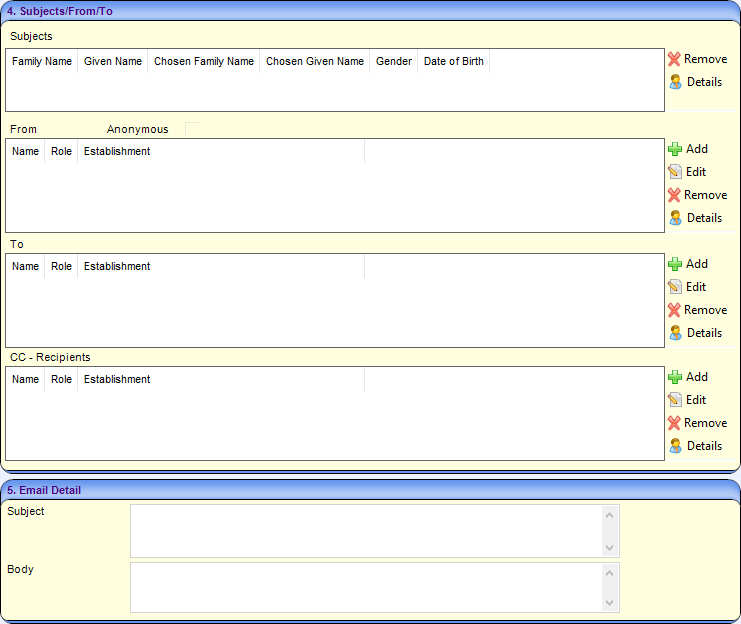
- On the Email Detail panel, enter the Subject and Body of the email.
Proceed to Selecting a Person.
Log a New Telephone Call
- On the Basic Detail panel, select Telephone from the Type drop-down.
- Select a Direction from the dropdown.
- Click the Continue button.
- On the Communication Summary panel:
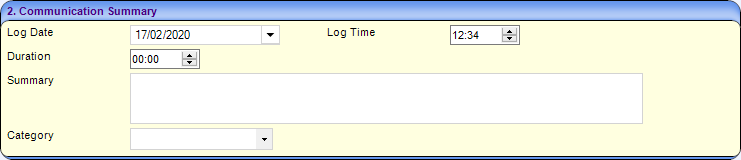
- Select Log Date from the dropdown calendar.
- Enter Log Time.
- Enter Duration.
- Enter a Summary.
- Select a Category from the dropdown list (Table ID: 0427).
- If required, enter a Memo.
- On the Subjects/From/To panel, click the Add button to display the Person Enquiry.
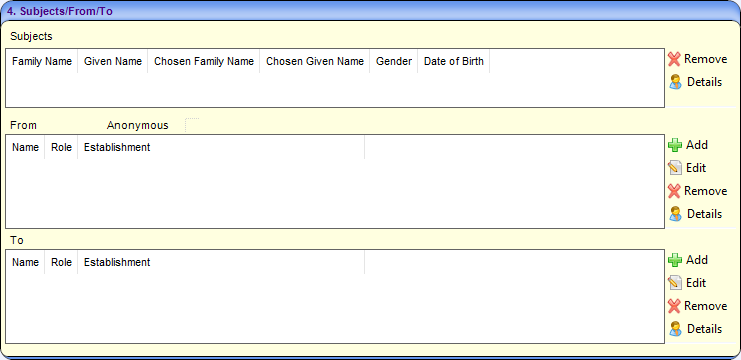
Proceed to Selecting a Person
Log a New Letter or Fax
- On the Basic Detail panel, select Letter or Fax from the Type dropdown.
- Select a Direction from the dropdown.
- Click the Continue button.
- On the Communication Summary panel:

- Select Log Date from the dropdown calendar.
- Enter Log Time.
- Enter a Summary.
- Select a Category from the dropdown list (Table ID: 0427).
- If required, enter a Memo.
- On the Subjects/From/To panel, click the Add button to display the Person Enquiry.
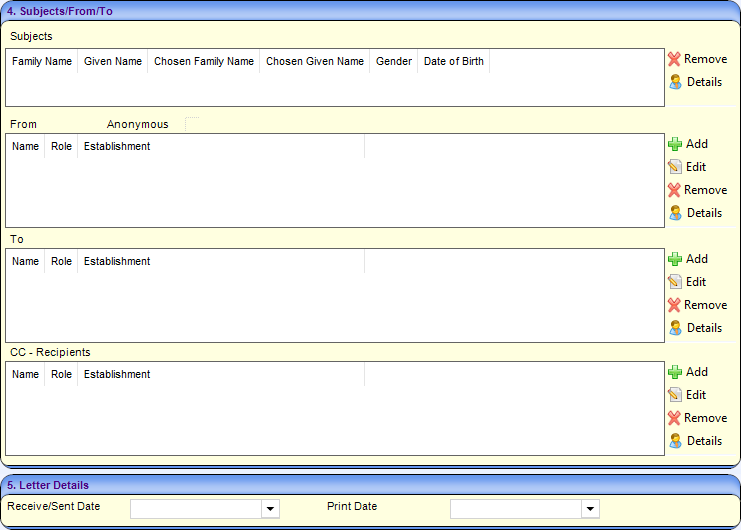
- On the Letter Details panel, select a Receive/Sent Date and a Print Date, if required.
Proceed to Selecting a Person.
Select a Person
Clicking the Add button on the Subjects/From/To panel displays the Person Enquiry dialog to select a From, To or CC-Recipient for the communication. A person or role is selected using the Person Enquiry page or the Base/Role page.
For Early Years there is no Subject and Key Contacts are not used.
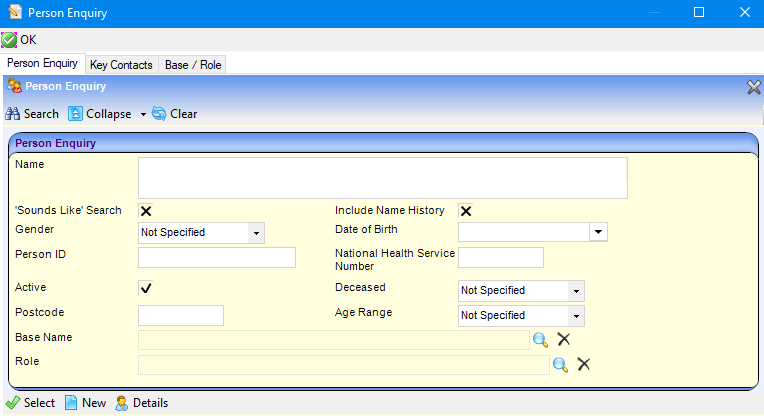
To select a person using the Person Enquiry page:
- Enter search criteria.
- Click the Search button to display a list of matching people.
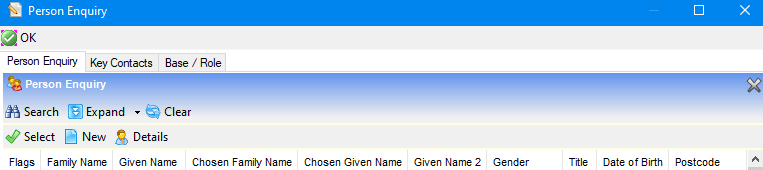
- Select the required person in the list and click the Select button.
- Click the OK button.
If required, click the New button to add new person.
Select a Base and Role
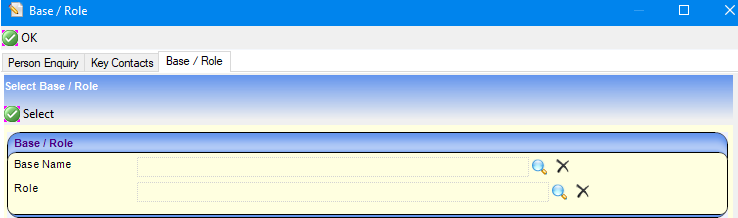
To select a person using the Base/Role page:
- Click the Base Name browse to display the Base Enquiry screen.
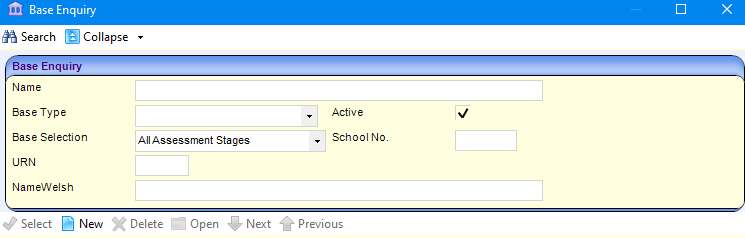
- On the Base Enquiry screen, enter search criteria, if required.
- Click the Search button to display a list of matching bases.

- Select the required base and click the Select button.
- Click the Role browse button to display the People Role Enquiry screen.
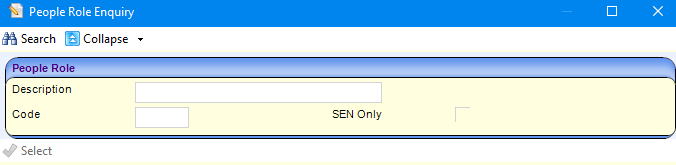
- Enter search criteria, if required.
- Click the Search button to display matching roles.
- Select the required role and click the Select button to display the Base/ Role screen.
- Click the OK button to display the Subjects/From/To panel.
Log Response Requirements

If a response is required for the communication:
- Select the Response Required check box to display a tick.
- If required, select a Response Due date from the drop-down calendar.
- If required, click the browse button to display the Person Enquiry and select a Referred To person.
After completing the required details, click the Save button.
 Related Reference Guides: Related Reference Guides:
|