
Early Years
Maintain Service Provision Other Details
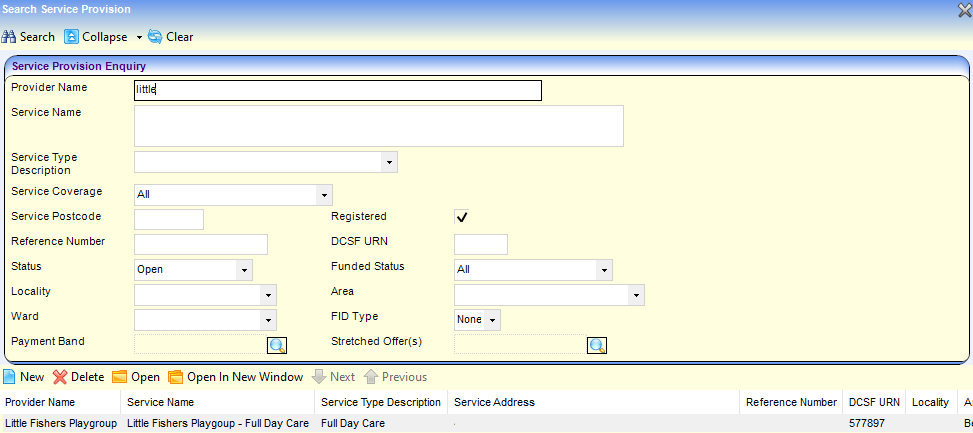
Select a Service Provision
Menu: Focus | Early Years | Search Service Provision
- Enter one or more search criteria and click the Search button.
- Select the required service provision in the results list and click the Open In New Window button to display the Maintain Service Provision page.
- Select the required panel to display or edit the service provision details
Display Vocabulary
The Parent Know How Directory Vocabulary is a hierarchical list of terms provided by the DfE. The terms that are relevant to Early Years Providers are selected via Tools | FID | Vocabulary.
Select the Vocabulary panel to display the terms that are selected as relevant to Early Years providers.

Maintain Keywords
The Keywords panel enables you to select local terms to associate with this service.
- Click the Add button to display a list of available keywords (Lookup table ID: 1115).
- Select the required keyword and click the Select button.

Maintain Funding Details
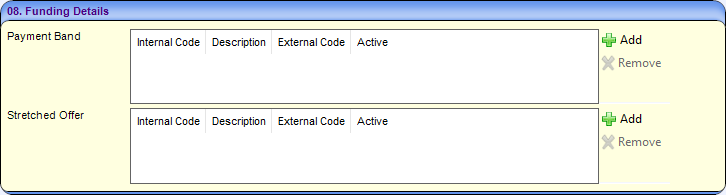
The Funding Details panel enables you to select one or more payment bands and stretched offers to associate with this service. These are used when defining the payment parameters for the service via Focus | Early Years | Early Years Setup | Payment Parameters.
- Click the Add button to display a list of available Payment Bands (Lookup table ID: 1161).
- Select the required payment band and click the Select button.
- Click the Add button to display available Stretched Offers (Lookup table ID: 1178).
- Select the required stretched offer and click the Select button.
Maintain Referrals
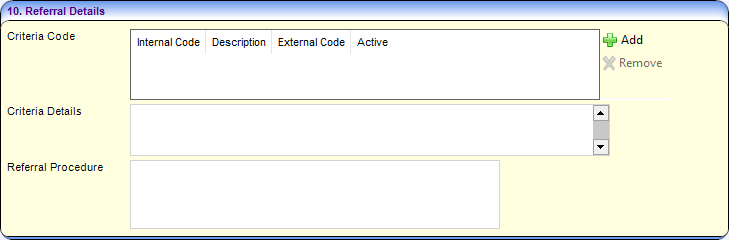
The Referral Details panel enables you to record the criteria and procedure for referrals at this service.
- Click the Add button to display a list of available Criteria Codes (Lookup table ID: 1086).
- Select the required code and click the Select button.
- If required, enter Criteria Details and Referral Procedure.
Maintain Facilities
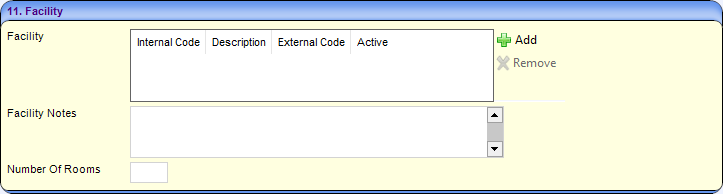
- Click the Add button to display a list of available Facilities (Lookup table ID: 0475).
- Select the required code and click the Select button.
- If required, enter Facility Notes.
- If required, enter the Number of Rooms within this facility.
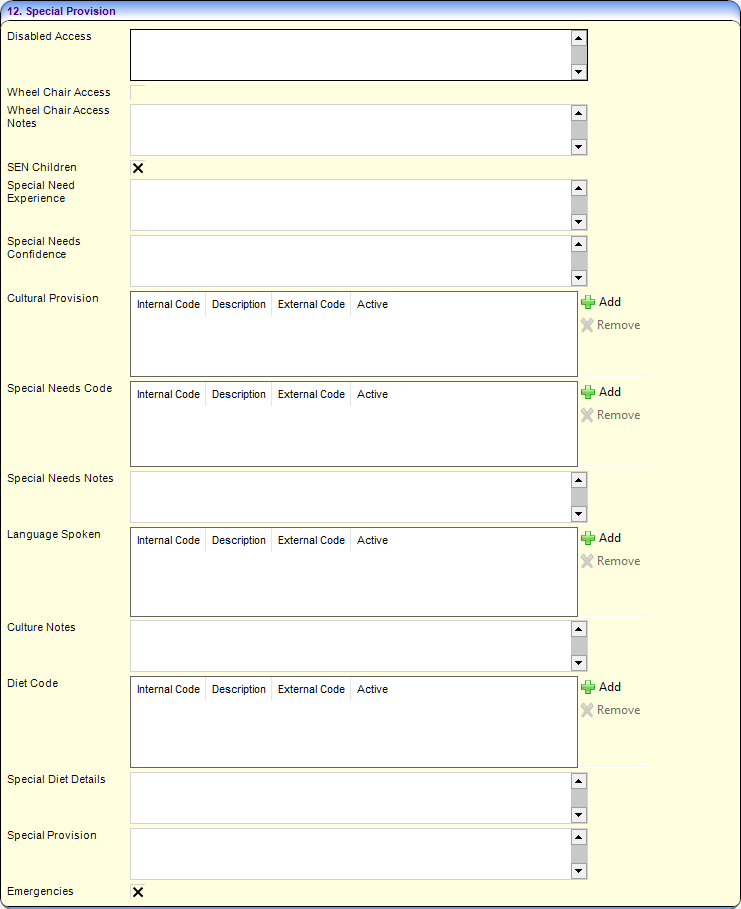
Maintain Special Provision
- If required, enter details of Disabled Access for the service.
- If the service has wheelchair access, select the Wheel Chair Access check box to display a tick. Wheel Chair Access Notes can be entered.
- If the service has provision for SEN children, select the SEN Children check box to display a tick. Special Need Experience and Special Needs Confidence can be entered as free text.
- If the service has Cultural Provision, click the Add button to display a list and select the required code (Lookup table ID: 1090).
- To record special needs provided for at the service, click the Add button to display a list and select the required code (Lookup table ID: 0721).
- If required, enter Special Needs Notes.
- Click the Add button to display a list of available Languages Spoken (Lookup table ID: 0002). Select the required language and click the Select button.
- If required, enter Cultural Notes.
- Click the Add button to display a list of Diet Codes (Lookup table ID: 0474). Select the required code and click the Select button.
- Special Diet Details and Special Provison details can be entered.
- If the service caters for emergencies, select the Emergencies check box to display a tick.
Maintain Travel Information
The Travel Information panel records information about parking and provision of transport at the service. If school pickups are available, the bases from where children can be collected and dropped off are recorded.
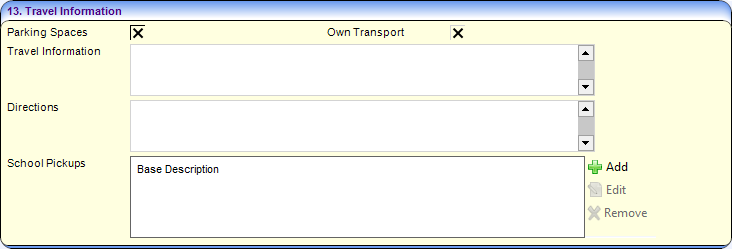
- If the service has parking spaces, select the Parking Spaces check box to display a tick.
- If the service has its own transport facilities, select the Own Transport check box to display a tick.
- If required, enter Travel Information and Directions.
- If School Pickups are available, click the Add button to display the Provider Base Link Details dialog.
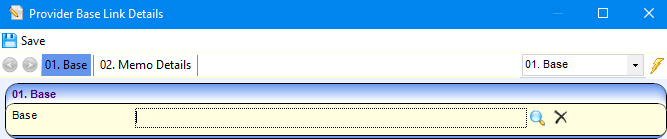
- Click the Base browse button to display the Base Enquiry dialog.
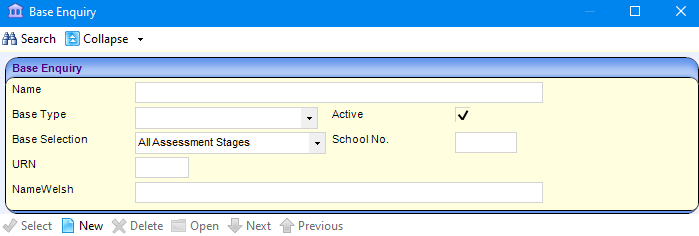
- Enter search criteria and click the Search button to display a list of matching bases.
- Select the required base and click the Select button to display the selected base on the Provider Base Link Details screen.
- If required, enter Memo Details.
- Click the Save button.
Maintain Lookup Details
The following panels are maintained by selecting the required values from the appropriate lookup table: „
- Award Information: Quality Assurance (Lookup Table ID: 1091), Accreditation (Lookup table ID: 1083). „
- PPAYP Category (Lookup table ID: 1092). „
- Area Covered (Lookup table ID: 1081). „
- Access Channel (Lookup table ID: 1080).
- Click the Add button to display the Lookup Codes dialog.
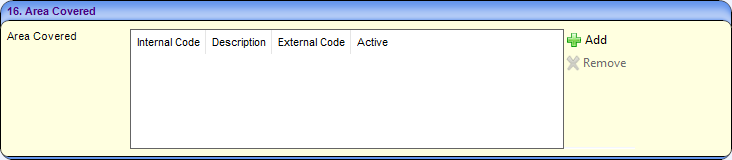
- Select the required code and click the Select button.

Maintain Staff Details
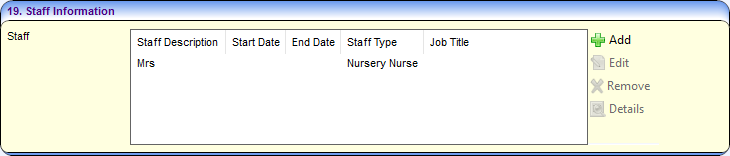
To add a new staff member to the service:
- Click the Add button to display the Maintain Staff for Service dialog.
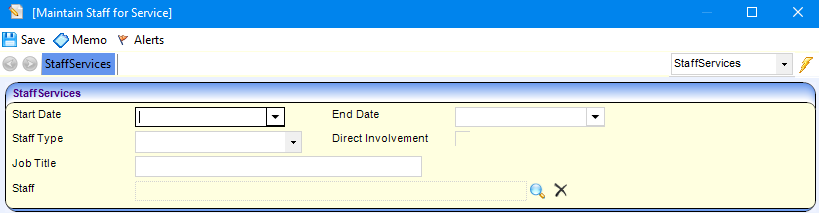
- Select a Start Date.
- Select a Staff Type from the dropdown list.
- If the staff member has direct involvement with children, select the Direct Involvement check box to display a tick.
- If required, enter a Job Title.
- Click the browse button to display the Early Years Staff Enquiry dialog.

- Click the Search button to display a list of Early Years staff.
- Select the required person and click the Select button to display the Maintain Staff for Service dialog.
- Click the Save button.
To edit the details of a staff member:
- Select the required person and click the Edit button to display the Maintain Staff for Service dialog.
- Edit the details as required.
- Click the Save button.
To remove a staff member, select it and click the Remove button.
To display the Staff Details for a staff member, select them and click the Details buton.
 Related Reference Guides: Related Reference Guides:
|