
The instructions on this page were different in the following release(s):
3.88
Basic Details
The Basic Details tab display details of the claims submitted by either parents/carers or students who are eligible to make an independent claim.
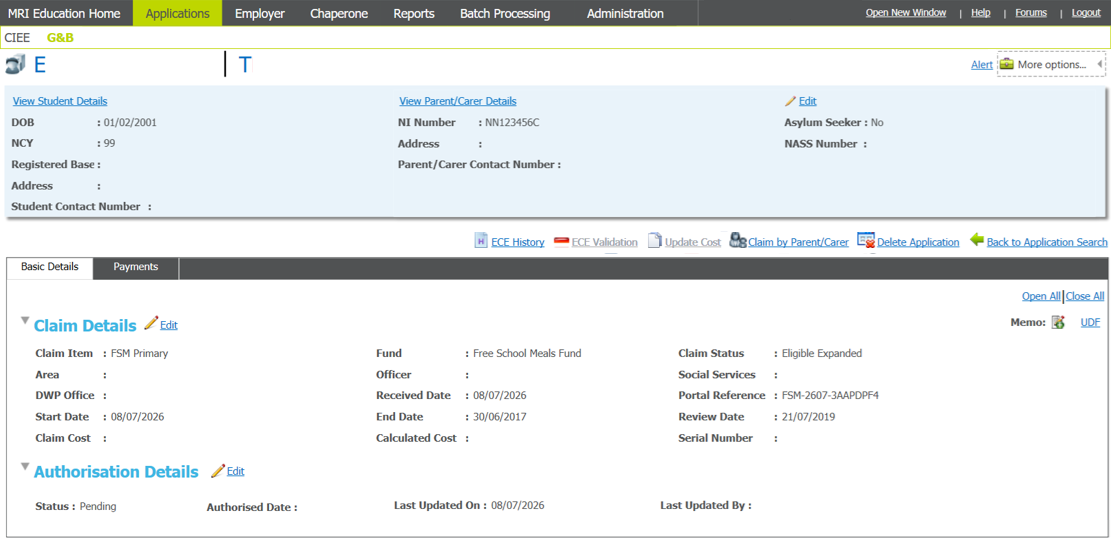
- Select an application.
- Ensure the Basic Details tab is open.
- Choose from the following options:
- Click the View Student Details hyperlinkhyperlink to go to the student record.
- Make any changes as required.
All the claims that a student is associated with are displayed in the Claims Details tab.- Select the Claim Details tab to display the list of claims made on behalf of the student.
- Click the Parent/Carer Name hyperlink to view information for the selected parent/carer.
- Click the Memo icon to add a memo to the selected application.
- Click the View Application hyperlink to view details of the selected application.
- Click the Back to Application hyperlink to return to the application.
- Make any changes as required.
- Click the View Parent/Carer Details hyperlinkhyperlink to go to the parent/carer record.
Choose from the following options:
- Parent/Carer details
Click the Edit Person Details hyperlink in the banner.
Make changes as required. - Select the Claim Details tab
All the claims that a parent/carer is associated with are displayed in the Claims Details tab.- Click the Student Name hyperlink to view information for the selected student.
- Click the Memo icon to add a memo to the selected application.
- Click the View Application hyperlink to view details of the selected application.
- Click the Add New Application hyperlink to add a new application.
- Select the Dependants tab
Parental Responsibility
G&B can use the Eligibility Checking Service (ECS) provided by the DfE to check a student’s Free Schools Meals (FSM) eligibility instantly. However, the service can only be used if the parent/carer attached to the application has parental responsibly, which is indicated by selecting the Parental Responsibility check box.- Click the name of the dependent for whom you want to update parental responsibility. The details of the student are displayed.
- Select the Carers tab.
- Click the Edit hyperlink to enable editing.
- Select the Parental Responsibility check box.
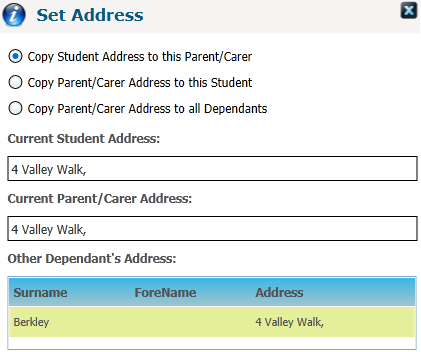
The Dependents tab enables you to assign or change addresses for the dependents of a selected parent or carer. You can assign a student’s address to a carer, assign a parent’s address to an individual student or apply a parent’s address to all the dependents.
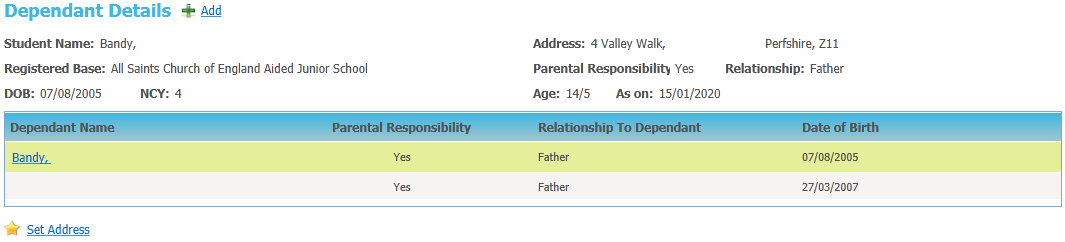
Choose from the following options:- Click the Add hyperlink to add a new dependent record.
Enter information as required.
If the student is not already in the database, click the Add New Student hyperlink to add a new student. - Select a dependant record to display additional information.
- Click the Dependant Name hyperlink to display the Person Details dialog for the selected dependant.
- Click the Set Address hyperlink to display the Set Address dialog for the selected dependant.
Select options as required.
- Select the Department Work Pensions and Eligibility Check tab.
Choose from the following options:- Click the Add hyperlink to display editable fields relating to the benefit.
Enter information as required. - Select a benefit record to display additional information.
- Click the Edit hyperlink to enable editing.
Make changes as required. - Click the Delete button to display the Delete Department Work Pension Details dialog.
Click the Yes button to complete the deletion.
- Click the Add hyperlink to display editable fields relating to the benefit.
- Click the Back to Application hyperlink to return to the application.
- Parent/Carer details
- Click the Edit hyperlink to update the Contact Numbers, NI Number, NASS Number and Asylum Seeker checkbox.
- Expand the Claim Details section
Click the Edit hyperlink to display editable fields.
Make changes as required. - Expand the Authorisation Details section
Click the Edit hyperlink to display editable fields.
Make changes as required. If you change the status to Rejected and the parent/carer associated with the current application has other active applications, you are asked if you want to reject the other active applications as well.If you choose to reject the other applications associated with the carer and you edited the End Date or Claim status of the first application, then the updated details are applied to all rejected applications.
- Click the Open All hyperlink to expand the Claim Details and Authorisation Details sections.
- Click the Close All hyperlink to close the Claim Details and Authorisation Details sections.
- Click the Memo button to add a memo to the claim.
- Click the UDF hyperlink to add extra information.
- Click the View Student Details hyperlinkhyperlink to go to the student record.
- Choose from the following additional options:
- Click the ECS History hyperlink to view the ECS History for the parent/carer.
- Click the ECS Validation hyperlinkhyperlink to check eligibility for the parent/carer.
Eligibility Checking Engine (ECE) Validation for Individual Applicants
There are two ways to check the FSM eligibility of an individual using the Eligibility Checking Engine (ECE). You can run the check while creating the application or you can run it from an existing application.
When creating an application, the ECE Validation hyperlink becomes active as soon as the parent/carer is added to the application. However, the check will not be valid until an FSM related claim type has been assigned to the application. If the parent/carer making the application does not have parental responsibility assigned, then you can run the check and the system automatically assigns parental responsibility.
Alternatively, you can open an existing application and click the ECE Validation hyperlink. If the parent/carer does not have parental responsibility assigned, then you must assign this manually before the ECE Validation link becomes active.
After an FSM application has been created and the associated parent or carer associated has parental responsibility for the student, you can use the Eligibility Checking Engine (ECE) to verify that a student is eligible for FSM.
After clicking the ECE Validation hyperlink, the check is performed with the DWP against the selected parent/carer and a message is returned either confirming or denying FSM eligibility.
Interpret the Qualifier Code
When a check result for FSM comes back as Not Found, a qualifier is also returned. This code is stored on the FSM check record. In the case of an individual check, the code is interpreted as shown in the following table:
Qualifier Interpretation Final The check result stands and no further action is required. Pending - Keep checking The information to process the check is not yet available and could take up to 6 weeks. The check should be periodically re-run. No Trace - Check data Details entered may be incorrect. The parent should re-enter their details. Manual Process The parent should provide further evidence and the LA should raise a manual query on the ECE web portal. Manual Query If you receive an error message when trying to check eligibility, see Troubleshooting an ECE Validation Failure.
- Click the Update Cost hyperlinkhyperlink to update the cost details for the claim.
The claim cost of Free School Meals item claims that have a cost defined in the default details can be calculated using the following formula:
Claim Cost = Annual FSM cost * (Days School Open in Claim / Annual School Days)
If any of the variables in the formula are changed (e.g. the FSM cost changes), you can update the cost of individual claims.
- Click the Claim by Parent/Carer hyperlink to display a list of claims associated with the parent/carer.
- Click the Delete Application hyperlink to delete the application.
A G&B application can be deleted if the Status of the application (as recorded in the Basic Details tab) is either Rejected or Pending. Applications with a Status of Authorised cannot be deleted. - Click the Back to Application Search hyperlink to return to the GNB Search screen.