
Provisions
Release notes for Spring 3.88
Prevent transaction payments being deleted when issued or authorised
Prevent base change if provision has Authorised or Issued transactions
View Provision ID in Provision Summary and Provision Details
Charge Type column added to Charge/Cost Details
Prevent Charge/Cost data from retained entries being updated
Provision Setup
The provision functionality enables you to record service provider, service and charge/cost information against a student to cover the full period of time of provision.
The charges for each provision year are automatically calculated based on the start date and end date of the provision together with the Provision Years (which are usually financial years) defined in the system.
You can record payments to third parties as transactions against a provision charge/cost.
There are two ways to record a provision against a student. Which method you choose depends on your Local Authority’s preference:
- Service Provider Link
- Charge Type and Service
When you create a provision record for a student, only one of the above methods is allowed, i.e. ‘Service Provider Link’ or ‘Charge Type and Service’.
Service Provider Link Method
Before you can record a provision against a student, you must link together the service provider, the service being provided and the associated charge type.
Example
A Service Provider (e.g. Special School for the Deaf) is linked with the Service being provided (e.g. Learning to Sign) with a Charge Type (e.g. £50/day).
Setup (summarised):
- Define which services are available for selection by your service team. Do this using the service categories which are applied to a service via Focus | Services | Service Categories.
- Define the provider, service, and charge type association via Focus | Services | Service Provider Links.
Charge Type and Service Method
Here you link the service with a charge type, i.e. no link exists to the service provider (until you create a specific provision record).
Changes to a charge type affect all records using it, so this method allows multiple provision records, linked to a charge type to be maintained easily in bulk.
Example
A local authority associates a charge type (e.g. £50/day) with a specific service (e.g. Learning to Sign). Any changes you subsequently make to that charge type affect all provision records for that service.
Provision Update
If a Scheduled Task with an action of Update Provision exists, the provisions are not updated immediately. This instead happens when the task is scheduled. On saving a new charge rate, the user is notified if this is the case.
You will receive a workflow message when the Provision records have been updated. It will be generated once the next Scheduled Task has completed. The next Scheduled Task will start running on DD-MM-YYYY HH:MM:SS.
Setup (detailed)
Define which services categories are available for selection by your service team.
- Define services categories via Focus | Services | Service Categories.
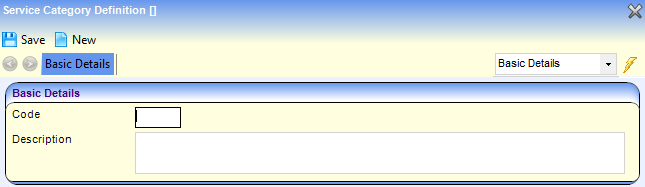
- Define which services are applied to a service category via Focus | Services | Services.
- Define the Provision Charge Type lookup codes via Tools | Administration | Lookups, (Table_ID 1062).
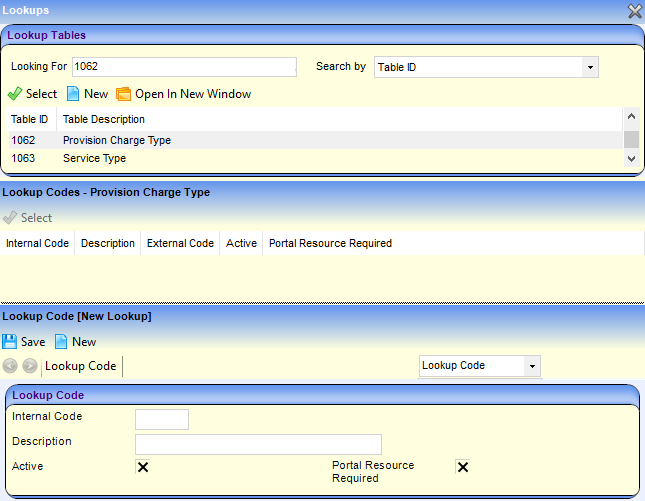
Provision Charge Types must be Active.- Provision Charge Type codes added to the lookup table are listed in Focus | Services | Provision Charge Type where the Charge Rate is defined.
If an end date added for the Charge Details on a Provision Charge Type is before the start date of the provision record, when new charges are added to the provision charge type the existing provision hours on the student provision record are reset to 1 and records of any payments that have been made are lost.
To prevent any payment records being lost, see Charge/Cost Details and Provision Charge Type. - To define the Provision Charge Rate:
- Access the Charge Type Detail page via Focus | Services | Provision Charge Type.
- In the Charge Type Cost Summary panel, click the Add button to display the Charge Rate dialog.
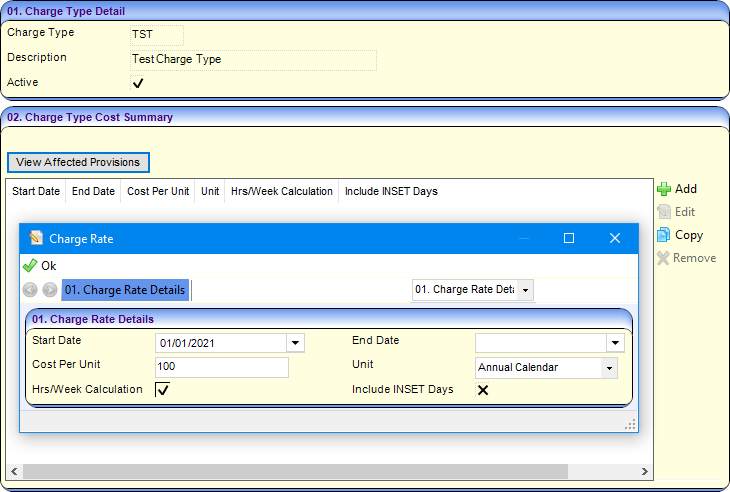
- Enter the Charge Rate Details:
- Cost per Unit: The amount allocated based on the selected Unit.
- Unit: this is the period which the cost is based on, i.e. Annual Calendar, Annual School, Day, Half-Term, Hour, Monthly, Termly or Weekly. The unit may be marked as Not Applicable if, for example, the cost is a "one-off", set for a fixed period.
- Hrs/Week Calculation: Select this check box to enable, for example, an Annual cost to be calculated per hour or week
- Include INSET Days: Select this check box if the provision includes INSET days.
- Provision Charge Type codes added to the lookup table are listed in Focus | Services | Provision Charge Type where the Charge Rate is defined.
- Define the values in the service team via Focus | Services | CSS Service Teams Administration:
- The Service Team must be linked to an Establishment of which you are a member.
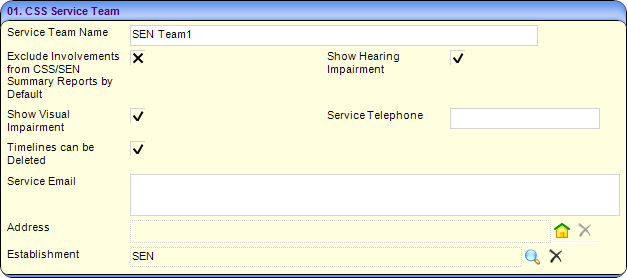
- Add Service Categories to the Service Team (panel 10) which links the service to the service team.
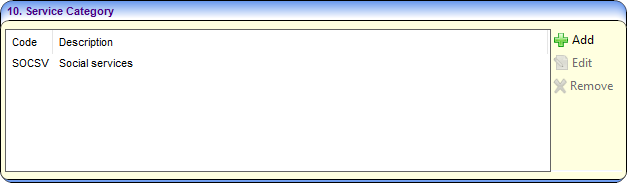
- The Service Team must be linked to an Establishment of which you are a member.
When you create a provision record for a student, only one of the above methods is allowed, i.e. Service Provider Link or Charge Type and Service.
Charge/Cost Details and Provision Charge Type
If an end date is added to the Provision Charge Type | Charge Details panel before the start date of the provision record, the existing provision hours on the student provision record are reset to 1 and any payment records that were made are lost.
To avoid payment records being deleted, complete the following procedure:
- Follow the steps above to set up the Charge Type and Service method.
- Click the Save button. The following message is displayed:
Saving these changes to this Provision Charge Type will cause some provision records to lose Charge/Cost Detail rows with payments attached and/or Provision Hours which have been entered against the record. OK Cancel Export Details. - Click the OK button to save the record as normal; the affected payments will be deleted.
- Click the Cancel button to stop the save, but retain the data entered by the user on the Provision Charge Type screen.
- Click the Export Details button to display the following message:
A .csv file containing the affected children and provisions will be saved at the location of your choice. It contains children’s data so please choose an appropriate location. Do you wish to continue?Yes No. - Click the No button to return to the first warning message without saving the changes made to the Provision Charge Type.
- Click the Yes button to select a location to save the file containing an export of the student/provision data affected by the potential changes to the Provision Charge Type record.
The exported .CSV file provides enough information for the affected records to be found via the v4 Client. The file lists provision records rather than students, so if one student has multiple provision records, each affected provision is listed as a row.
Adding Provision End Dates for charge details will prevent this problem occurring.
It is advisable to ensure that charge details are kept up to date. If they are not up to date, they should be edited before adding payments to provisions.
Provision Year Setup
The system enables you to define year details for business processes, including provision. Years can be either academic or financial, with user-defined start and end dates.
When a new financial year is created all provision records are updated. If a Scheduled Task with an action of Update Provision exists, the provisions are not updated immediately. This instead happens when the task is scheduled. On saving a new financial year, the user is notified if this is the case.
You will receive a workflow message when the Provision records have been updated. It will be generated once the next Scheduled Task has completed. The next Scheduled Task will start running on DD-MM-YYYY HH:MM:SS.
To create a new Provision Year:
- Select Tools | Year Settings | Year Definitions to display the Year Definition Summary page.
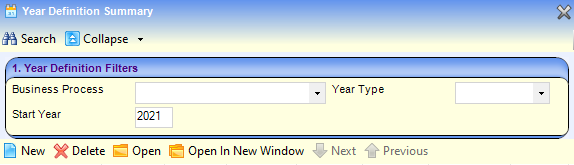
- To add a new provision year, click the New button to display the Year Definition page.
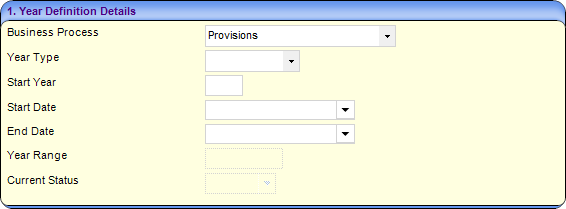
- Select Provisions from Business Processes drop-down.
- Select either Financial or Academic from the Year Type dropdown.
Once a Year Type has been saved it cannot be edited.
- In Start Year, enter the year you want the provision year to start.
- In the Start and End Date, the system defaults according to the Year Type and the Start Year. If required, you can change these fields.
The Year Range is calculated depending on the Start Year you entered above.
- When you have finished, click the Save button.
If the Year Type is Financial, the No. of School Days in Financial Year is calculated.
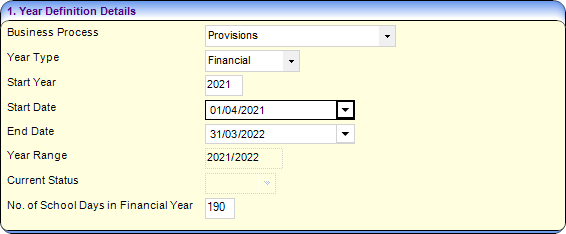
Here are some points to note about the No. of School Days in Financial Year field:
- The No. of School Days in Financial Year field is used for calculations performed by the Annual School Census process. The calculation is:
(School Days covered by provision) / (School Days in the Provision Year) - The No. of School Days in Financial Year field defaults to 190. If you want a different value, you must amend it before the year definition record is saved.
- Only whole numbers can be entered with a maximum range of 1-366 (365 for financial years not covering a leap year day). Additionally, the maximum value that can be entered cannot exceed the total number of calendar days in the provision year.
- The field value is automatically set to 190 days for existing financial provision years. Whether the years are future, current or past does not affect this.
- Where provisions exist for a given provision year, the Year Definition record for that year cannot be amended (including the new field for number of school days in provision year).
Update Provision Scheduled Task
When a new financial year is created or a new charge rate is created against a service provider, all provision records need to be updated with the new calculations. Whilst the system is updating the provision records a timeout can occur preventing the records from being updated.
Creating a Scheduled Task with an action of Update Provision can manage this process. This means that when the LA adds a new financial year or charge rate, the provision update process won’t run immediately. Instead it is run based on when the LA has defined it to run in the scheduled task. Having this process run as a scheduled task means the time out will not happen and the financial year will be successfully created alongside updating the provision records.
If no scheduled task exists in the future, the provision records continue to be updated immediately.
Provision Update
When a new charge or financial year is created, the user is notified that the provision will be updated when the scheduled task runs and when that will be.
After the charge rate/financial year is created, a new cost record is created against the Student Provision, but only the Cost Per Unit column is updated.
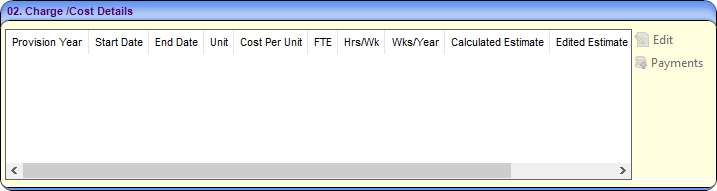
Once the scheduled task has run, the Provision Year, Calculated Estimate and Edited Estimate field are updated with the new calculations.
Workflow Messages

A workflow message is generated after the scheduled task has run.
If the task ran successfully it states Provision records updated. If it is not successful it states it has failed and provision records have not been updated.
If the task fails, it will need to be run again.