
Early Years
Adding a New Enquiry
After saving the details of an enquirer, a general enquiry record must be added before recording a specific enquiry
Record a General Enquiry
- Select Focus | Enquiries | Enquiry.
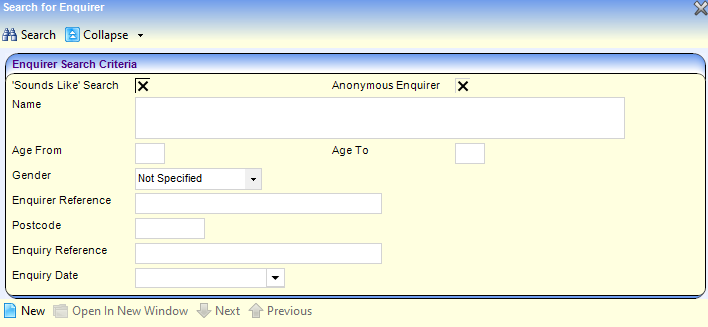
- Enter search parameters.
- Click the Search button to display matching enquirers.
- Highlight the required record and click the Open In New Window button to display the Enquirer Details page.
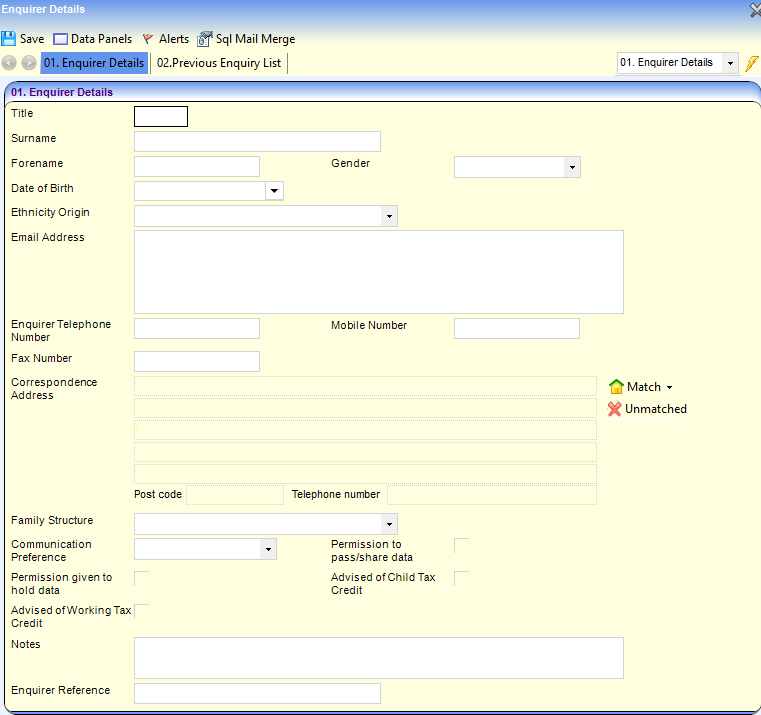
- If required, enter at least one of the following contact details:
- Email Address
- Enquirer Telephone Number
- Correspondence Address.
- Click the Save button to save the enquirer details.
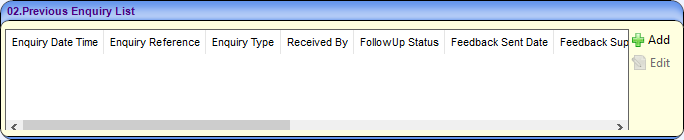
- On the Previous Enquiry List panel, click the Add button to display the Previous Enquiry Details page.
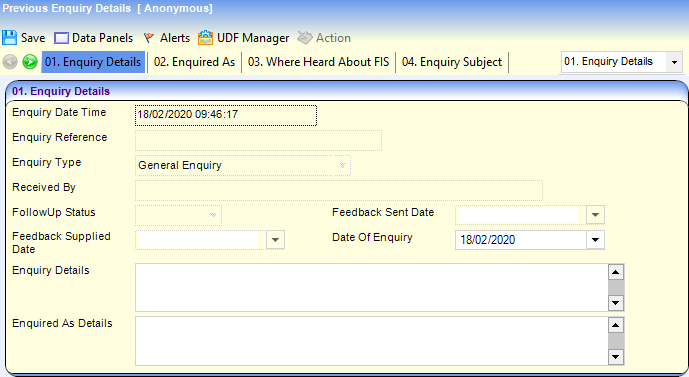
- If required, enter Enquiry Details.
- If required, select the required panel and click the Add button to enter the following details:
- Enquired As (Table ID: 0623)
- Where Heard About FIS (Table ID: 0806)
- Enquiry Subject (Table ID: 0855).
- Click the Save button to save the General Enquiry details.
- Select the Enquiry Search List panel and click the Add button to display the Additional Enquiry Searches page.
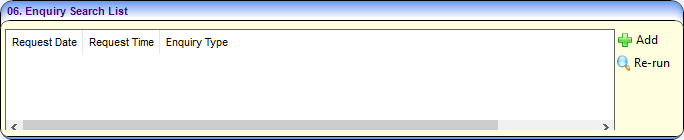
- Select a Search Type from the drop-down list and click the Continue button to add a specific enquiry.

Record a Childcare Provision Enquiry
To record a provision enquiry:
- Select Search for Provision from the Search Type dropdown and click the Continue button to display the Search for Provison page.
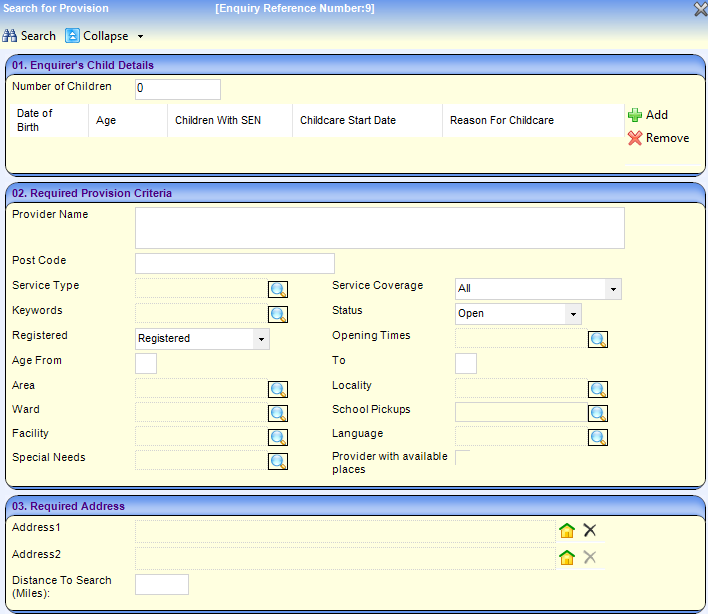
- On the Enquirer’s Child Details panel, enter the Number of Children and click the Add button to add the details of each child.
- Enter the Date of Birth of the child.
- If required, enter more details:
- Select the Children with SEN check box to display a tick.
- Select the Childcare Start Date.
- Select the Reason for Childcare.
- Enter any requirements on the Required Provision Criteria panel.
- If required, enter one or two addresses on the Required Address panel:
- Click the Select Address button to display the Address Enquiry window.
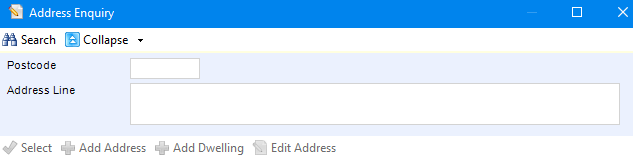
- Enter search criteria and click the Search button to display a list of matching addresses.
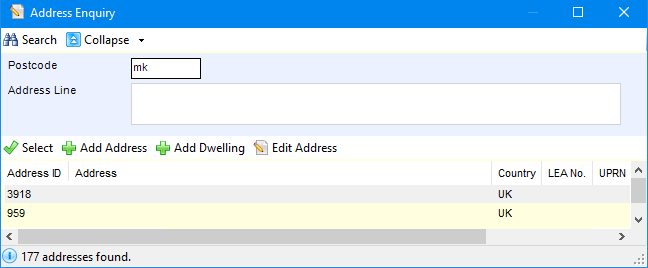
- Highlight the required address and click the Select button.
- Enter the Distance to Search (Miles).
- Click the Select Address button to display the Address Enquiry window.
- Click the Search button to display matching providers.

- To display one or more of the providers on a map, select the check box adjacent to the required provider and click the View On Map button.
- To save the search details, click the Save button.
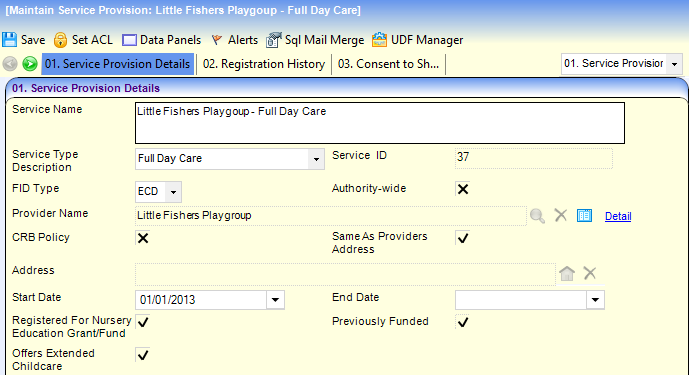
- If required, highlight a provider and click the Open In New Window button to display the details on the Maintain Service Provision page.
Record a Job Vacancy Enquiry

To record a job vacancy enquiry:
- Select Search for Job Vacancies from the Search Type drop-down and click the Continue button to display the Search for Job Vacancies page.
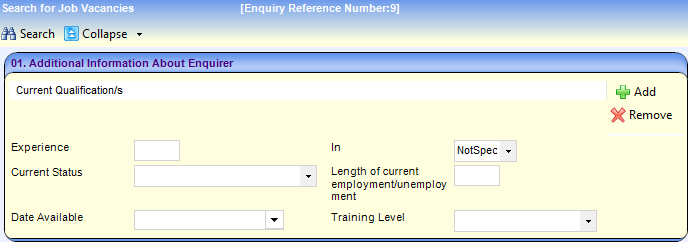
- If required, enter the following information on the Additional Information About Enquirer panel:
- Click the Add button to and select one or more Current Qualifications from the drop-down list (Table ID: 0010).
- Enter the number of Weeks, Months or Years of Experience.
- Select Current Status (Table ID: 0804).
- Enter Length of current employment/unemployment.
- Select Date Available.
- Select Training Level from the drop-down (Table ID: 0473).
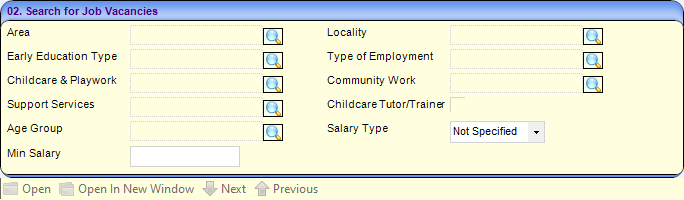
- On the Search for Job Vacancies panel, select the required criteria:
- Area (Table ID: 0471)
- Locality (Table ID: 0470)
- Early Education Type (Table ID: 0811)
- Type of Employment (Table ID: 0815)
- Childcare & Playwork (Table ID: 0812)
- Community Work (Table ID: 0813)
- Age Group (Table ID: 0800).
- If required, select Salary Type from the drop-down and enter Min Salary.
- Click the Search button to display matching vacancies.

- Click the Save button.
Record a Training Enquiry

To record a training enquiry:
- Select Search for Training from the Search Type drop-down and click the Continue button to display the Search for Training page.
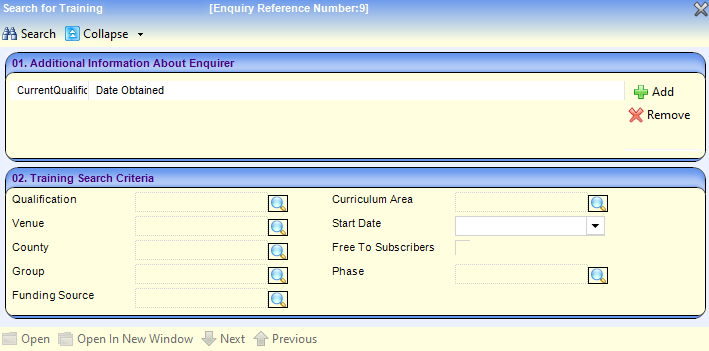
- If required, enter the following information on the Additional Information About Enquirer panel:
- a. Click the Add button and select one or more Current Qualifications from the dropdown list (Table ID: 0010).
- b. Select the Date Obtained.
- If required, select one or more of the following on the Training Search Criteria panel:
- Qualification (Table ID: 0010)
- Curriculum Area (Table ID: 0117)
- Venue
- County
- Group (Table ID: 0115)
- Funding Source (Table ID: 0227)
- Start Date
- Phase (Table ID: 0215).
- Click the Search button to display matching courses.
- Click the Save button.
Record an Action Taken
The Action Taken Details dialog is displayed when you close an enquiry screen or click the Action button.
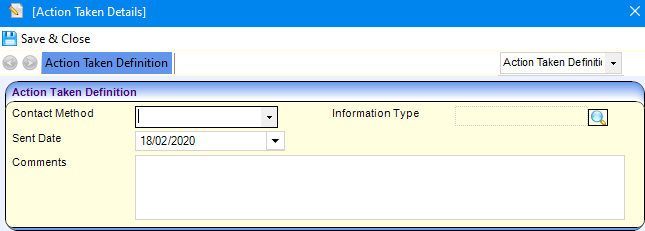
- If required, enter the following information about the enquiry:
- Contact Method (Table ID: 1037)
- Information Type (Table ID: 0809)
- Comments.
- Click the Save and Close button.
 Related Reference Guides: Related Reference Guides:
|