
Early Years
Record Enquirer Feedback
To record enquirer feedback, a feedback form can be created consisting of a number of questions organised into groups. After creating the form, it can be previewed.
Create a New Feedback Form
- Select Focus | Enquiries | Configure Feedback Form Enquiry to display the Form Definition Enquiry page.

- Click the New button to display the Feedback Form Definition page.
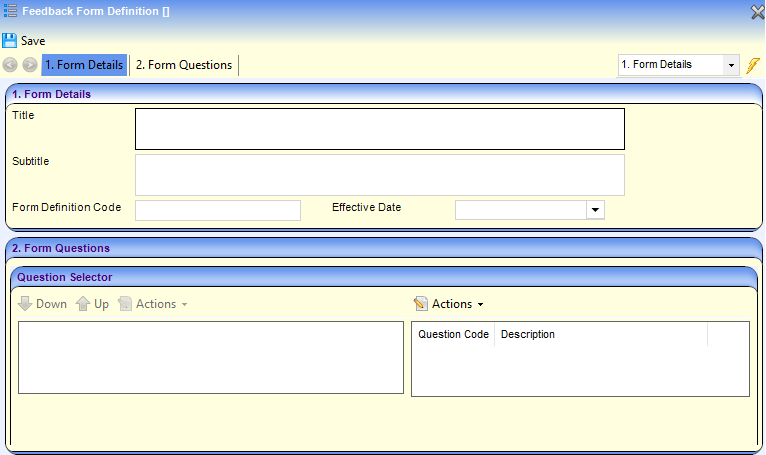
- To enter details on the Form Details panel:
- Enter a Title.
- If required, enter a Subtitle.
- Enter a Form Definition Code.
- Select an Effective Date.
- Select Create New Question from the Actions drop-down to display the Question Definition page.
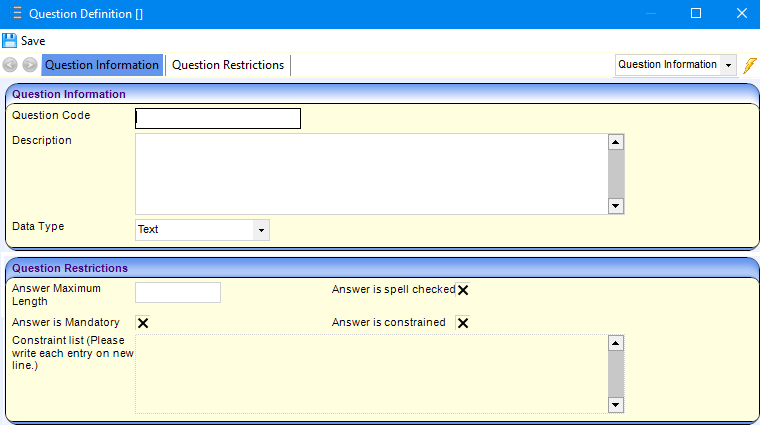
- Enter a Question Code.
- Enter a Description.
- Select a Data Type from the dropdown.
- To record any restrictions on the Question Restrictions panel:
- Enter an Answer Maximum Length.
- To spell check the answer, select the Answer is spell checked check box to display a tick.
- If required, select the Answer is Mandatory check box to display a tick.
- If required, select the Answer is constrained check box to display a tick and enter a list of constraints.
- Click the Save button.
- To create a new group on the form and add the question to it, highlight the question and select Add Question to New Group on Form from the Actions dropdown to display the New Group dialog.
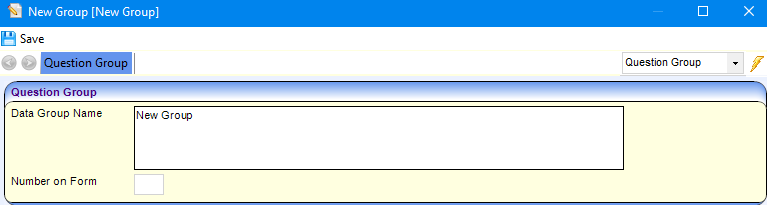
- Enter a Data Group name and a Number on Form.
- Click the Save button to display the Feedback Form Definition page.
Amend a Feedback Form
- Select Focus | Enquiries | Configure Feedback Form Enquiry to display the Form Definition Enquiry page.
- If required, enter a Form Definition Code and Effective Date.
- Click the Search button to display matching forms.
- Select the required form and click the Open In New Window button to display the Feedback Form Definition. page.
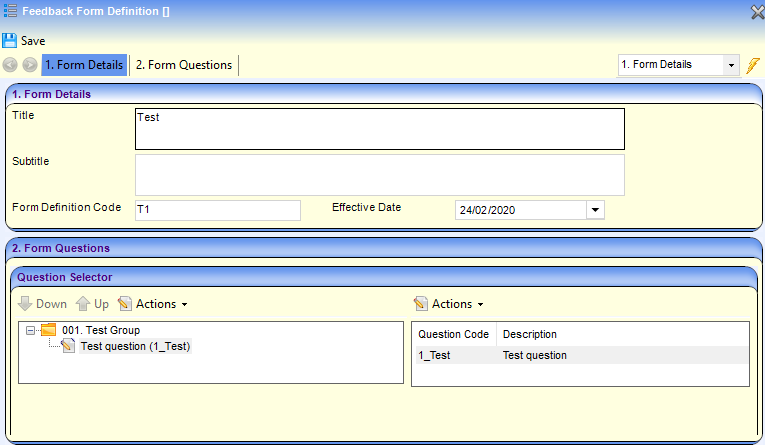
- To amend the Form Details enter new information for:
- Title
- Subtitle
- Form Definition Code
- Effective Date
- To create a new question:
- Click Create New Question from the Actions drop-down to display the Question Definition window.
- Enter Question Information and Question Restrictions.
- Click the Save button.
- Click Create New Question from the Actions drop-down to display the Question Definition window.
- To add a question to a new group on the form:
- Highlight the question in the right-hand pane of the Question Selector panel.
- Select Add Question To New Group on Form from the Actions drop-down to display the New Group page.
- Enter the required Data Group Name.
- To define the position on the form for the new group, enter a Number on Form.
- Click the Save button.
- To add a question to an existing group:
- Select the required question in the righthand pane of the Question Selector panel.
- Select Add Question to Form from the Actions drop-down to display the question in the left-hand pane
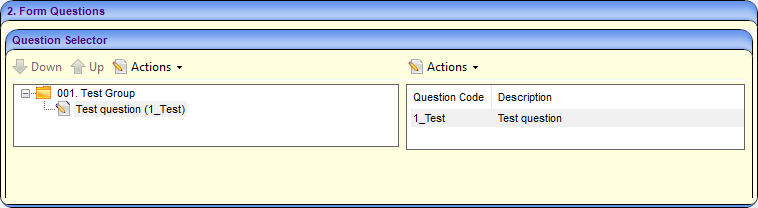
- If required, to change the order of questions in the group:
- Highlight a question in the left-hand pane.
- Click either the Up or Down button.
- Click the Save button.
Amend a Question
- Select Focus | Enquiries | Configure Feedback Question Enquiry to display the Question Definition Enquiry page.
- If required, enter search criteria and click the Search button to display a list of matching questions.
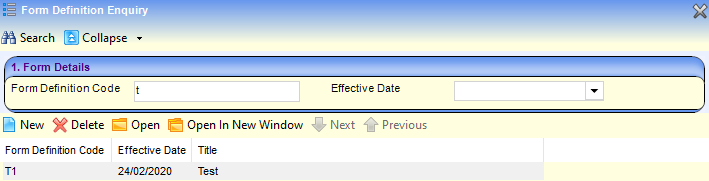
- Highlight a question in the list and click the Open In New Window button to display the Question Definition page.
- Make the required changes and click the Save button.
Preview a Feedback Form
- Select Focus | Enquiries | Configure Feedback Form Enquiry to display the Form Definition Enquiry page.
- Enter search criteria and click the Search button.
- Select the required form and click the Open In New Window button to display the Feedback Form Definition.
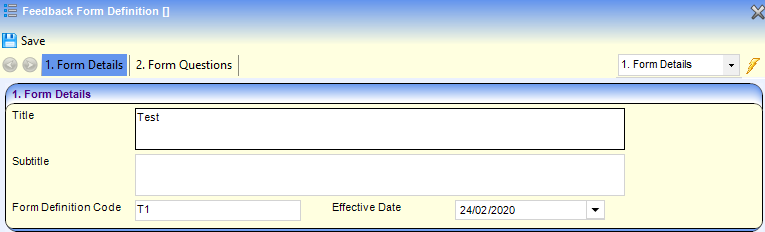
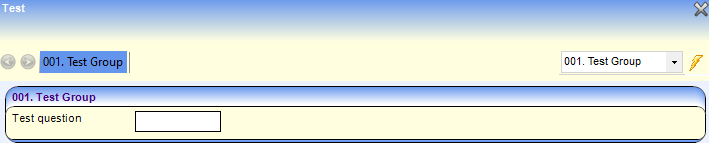
- Click the Preview Feedback link to display the form.
 Related Reference Guides: Related Reference Guides:
|