
Early Years
Service Provision - Availability and Capacity
Searching for a Service Provision
The dates and times when a service provision is available, the age ranges catered for, the capacity for specific age ranges and the vacancies at the service provision can be recorded.
Menu: Focus | Early Years | Search Service Provision
- Enter one or more search criteria and click the Search button:
- A full or partial Provider Name.
- A full or partial Service Name.
- Select a Service Type Description from the drop-down list.
- A Service Postcode.
- A DCSF URN.
- A Reference Number.
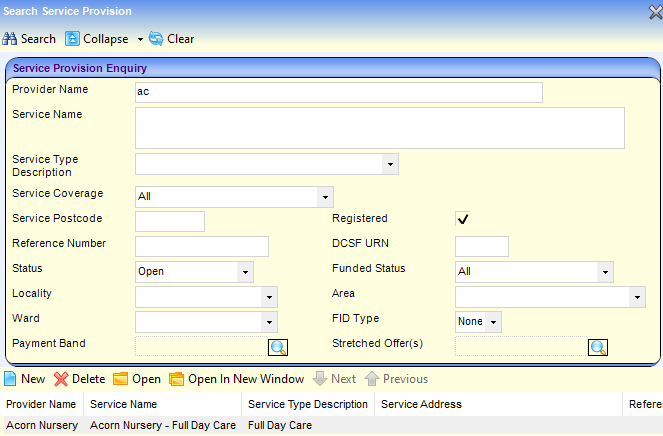
- Select the required service provision in the results list and click the Open In New Window button to display the Maintain Service Provision page.
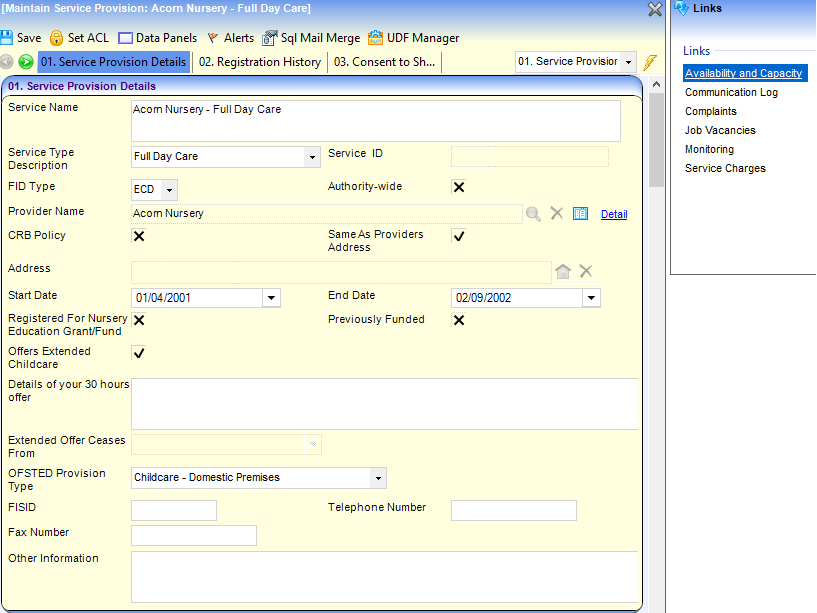
- Click the Availability and Capacity link on the Links panel to display the Availability and Capacity Details page.
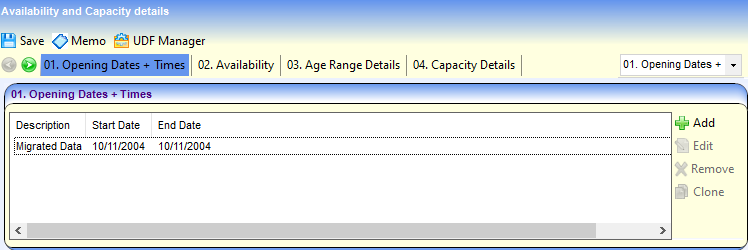
Adding Opening Dates and Times
To add opening dates and times for the service provision:
- Click the Add button on the Opening Dates + Times panel to display the Opening Dates + Times Details page.
- On the Opening Dates panel, enter a Description.
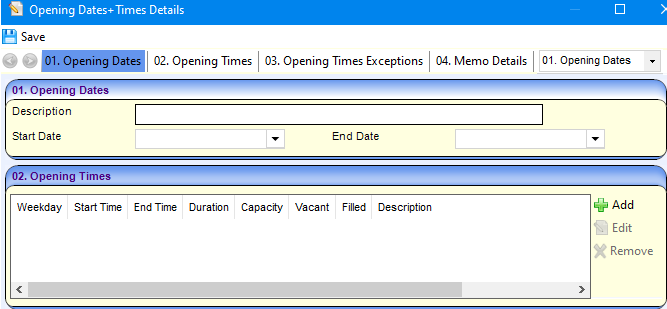
- Select a Start Date.
- If required, select an End Date.
- On the Opening Times panel, click the Add button to display the Opening Times Details dialog.
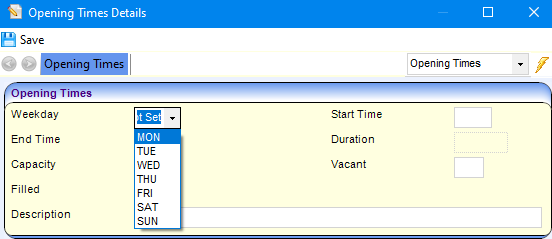
- Select a Weekday from the drop-down list.
- Enter a Start Time (HHMM).
- Enter an End Time (HHMM).
- Enter a Capacity.
- If required, enter the number of Vacant places.
- Click the Save button.
- If required, enter details of exceptions to the normal opening times on the Opening Times Exceptions panel:

- Click the Add button to display the Opening Times Details dialog.
- Select a Weekday and enter Start Time, End Time and Capacity.
- If required, enter the number of Vacant places.
- Click the Save button.
Adding Availability
If required, enter details of the availability of the service provision on the Availability panel.
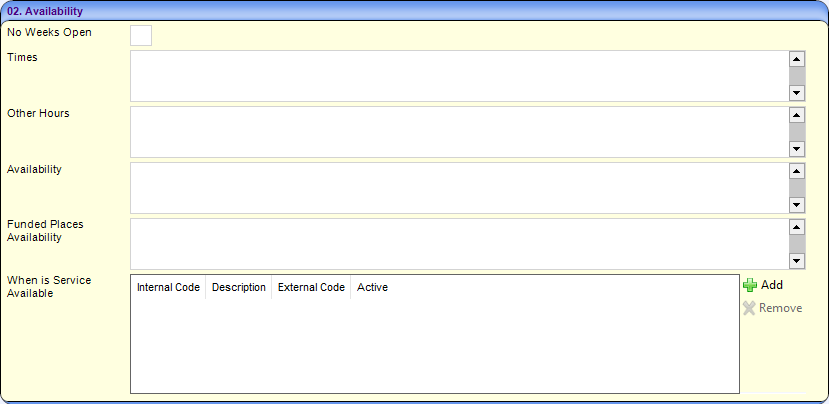
- Enter the number of weeks the provider is open in the No weeks Open field.
- Enter free text for Times, Other Hours, Availability and Funded Places Availability.
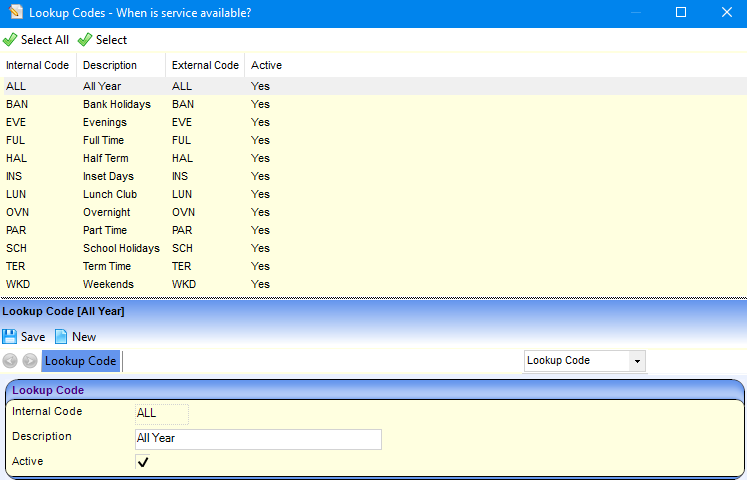
- Click the Add button to display the Lookup Codes - When is service available? dialog.
- Select one or more lookup codes and click the Select button.
Updating Other Details
- Enter details of the age ranges catered for on the Age Range Details panel:
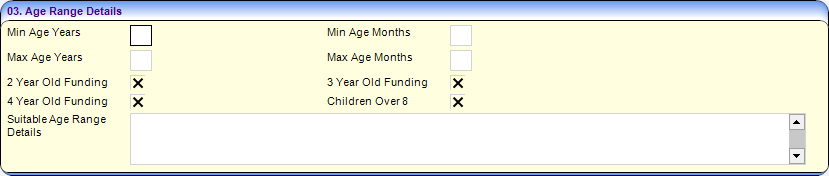
- Enter the minimum age in years and months.
- Enter the maximum age in years and months.
- If required, select one or more check boxes for 2 Year Old Funding, 3 Year Old Funding and 4 Year Old Funding.
- If required, enter Suitable Age Range Details.
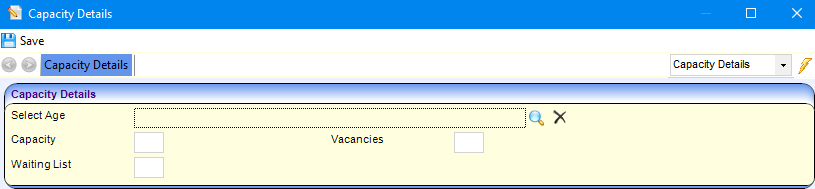
- Click the Add button on the Capacity Details panel to display the Capacity Details window.
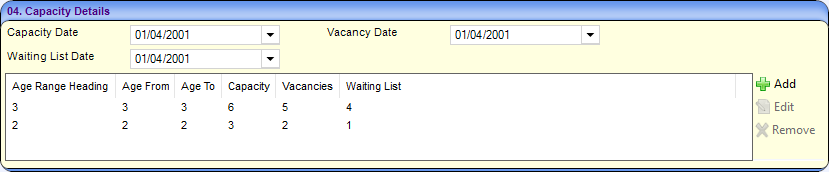
- Click the browse button to display the Age Range Enquiry dialog.
- Click the Search button to display all the available age ranges.
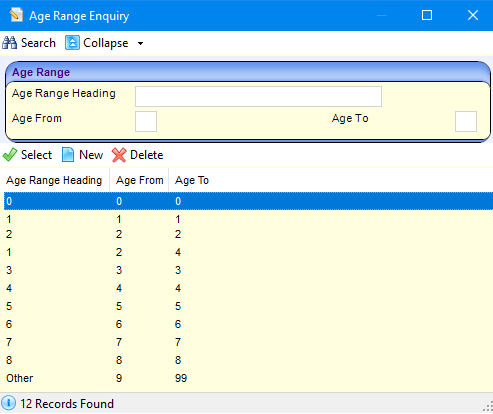
- Select the required age range and click the Select button.
- Enter the Capacity for the age range.
- If required, enter the Vacancies and Waiting List numbers.
- Click the Save button.
On the Vacancy Information panel:

- If the service can be contacted regarding vacancies, select the Contact for Vacancies check box to display a tick.
- If there are immediate vacancies, select the Immediate Vacancies check box to display a tick.
- Select a Contact Method for Updating Vacancies from the dropdown list.
- If there is currently a waiting list, select the Waiting List check box to display a tick.
- If required, enter Vacancy Other Information.
- After completing the required details, click the Save button.
 Related Reference Guides: Related Reference Guides:
|