
Early Years
Manage Complaints
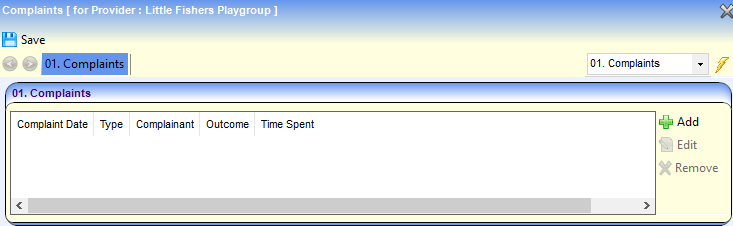
Complaints made about a childcare provider can be displayed and updated. To display the complaints, search for the provider or service and click the Complaints link.
Display Complaints for a Childcare Provider
Menu: Focus | Early Years | Search for Provider
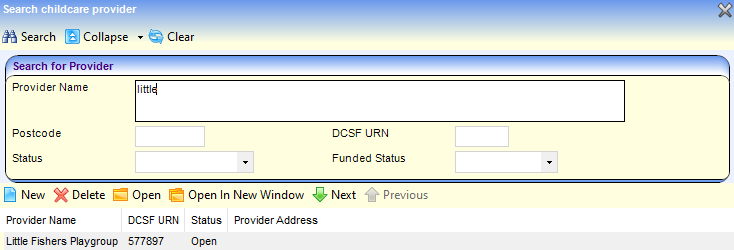
- Enter one or more search criteria and click the Search button:
- A full or partial Provider Name.
- A full or partial Postcode.
- A DCSF URN.
- Select a Status.
- Select a Funded Status. Wildcards of %% can be used.
- Select the required provider in the results list and click the Open In New Window button to display the Maintain Provider page.
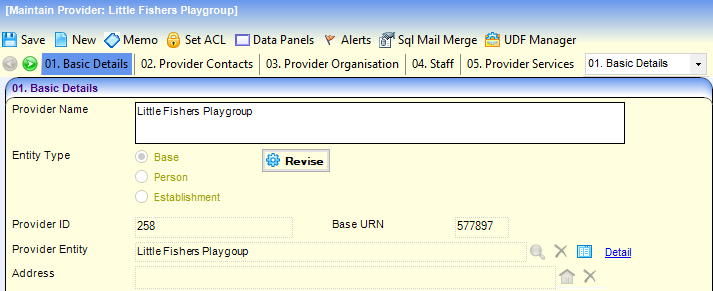
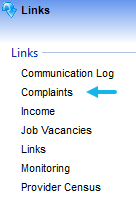
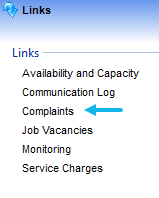
- Click the Complaints link on the Links panel to display the Complaints page with a list of any current complaints made about the provider.
Display Complaints for a Service Provision
Menu: Focus | Early Years | Search Service Provision
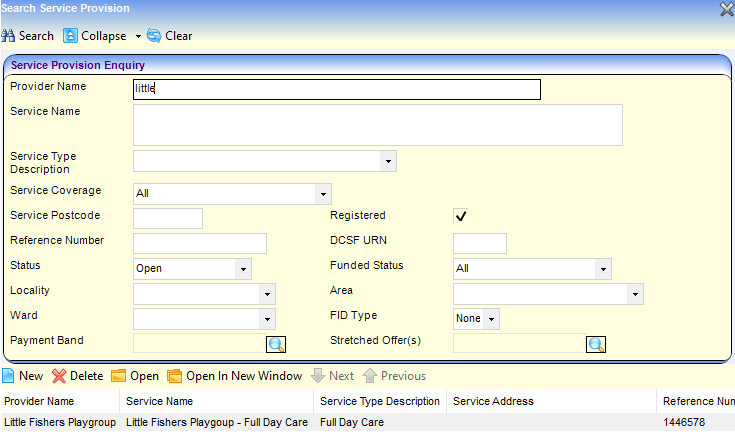
- Enter one or more search criteria and click the Search button:
- A full or partial Provider Name.
- A full or partial Service Name.
- Select a Service Type Description. Wildcards of %% can be used.
- Select the required service in the results list and click the Open In New Window button to display the Maintain Service Provision page.
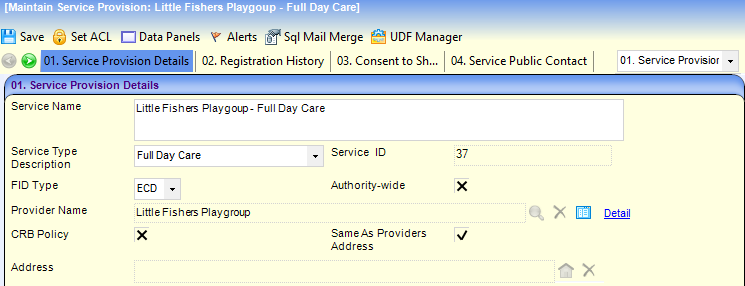
- Click the Complaints link on the Links panel to display the Complaints page with a list of any current complaints made about the service provision.
Update Complaint Details
To record a new complaint:
- Click the Add button to display the Complaint Details page.
To update a complaint, select it and click the Edit button.
To remove the complaint, select it and click the Remove button.
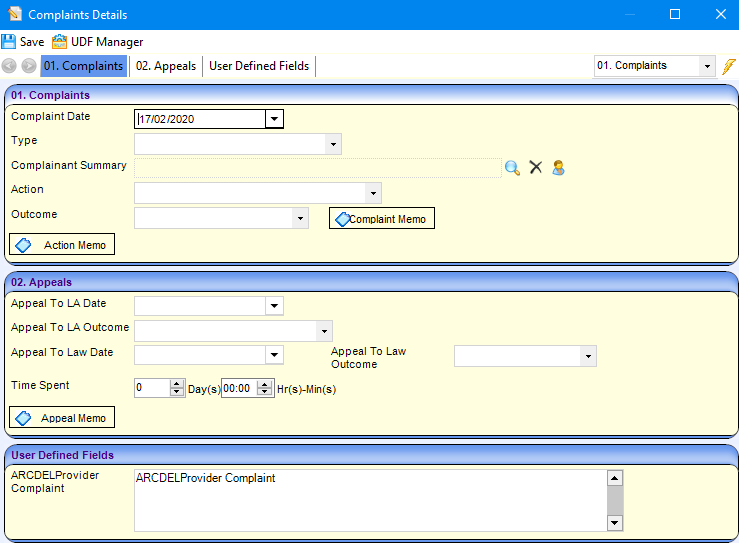
- On the Complaints panel, select a Type from the drop-down (Lookup Table ID: 0476).
- If required, click the browse to display the Person Enquiry dialog and select a Complainant Summary.
- If required, select an Action from the drop-down (Lookup Table ID: 0477).
- If required, select an Outcome from the drop-down (Lookup Table ID: 1143).
- If required, click the Complaint Memo button or the Action Memo button to record a corrosponding memo.
- If required, enter appeal details on the Appeals panel:
- Select an Appeal To LA Date.
- Select an Appeal To LA Outcome date.
- Select an Appeal To Law Date.
- Select an Appeal To LA Outcome date.
- Enter the Time Spent on the appeal.
- Click the Appeal Memo button to enter a memo.
- If required, enter User Defined Fields.
- Click the Save button.
 Related Reference Guides: Related Reference Guides:
|