
Early Years
Service Provision - Service Charges
Searching for a Service Provision
The dates and times when a service provision is available, the age ranges catered for, the capacity for specific age ranges and the vacancies at the service provision can be recorded.
Menu: Focus | Early Years | Search Service Provision
- Enter one or more search criteria and click the Search button:
- A full or partial Provider Name.
- A full or partial Service Name.
- Select a Service Type Description from the drop-down list.
- A Service Postcode.
- A DCSF URN.
- A Reference Number.
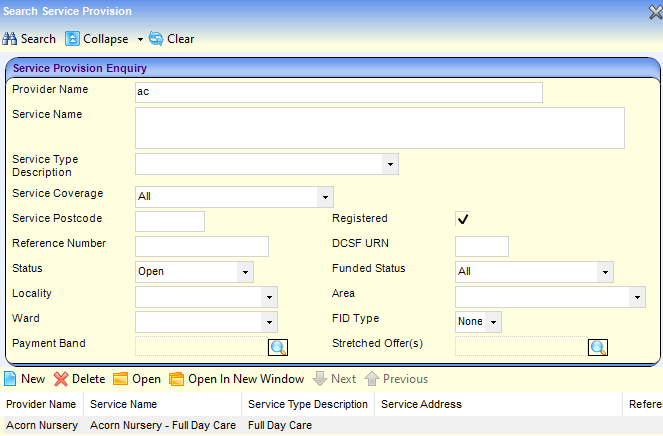
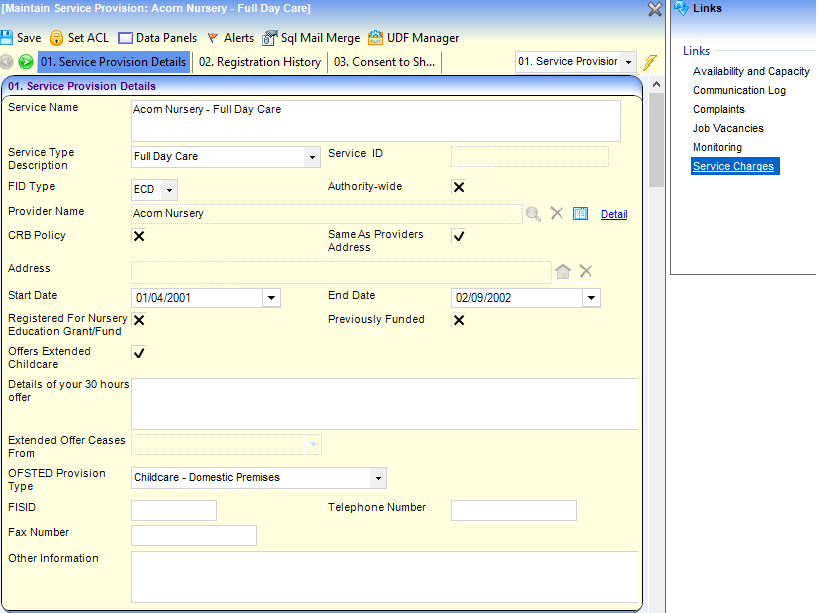
- Select the required service provision in the results list and click the Open In New Window button to display the Maintain Service Provision page.
- Click the Service Charges link on the Links panel to display the Service Costs Details page.
Adding Service Charges
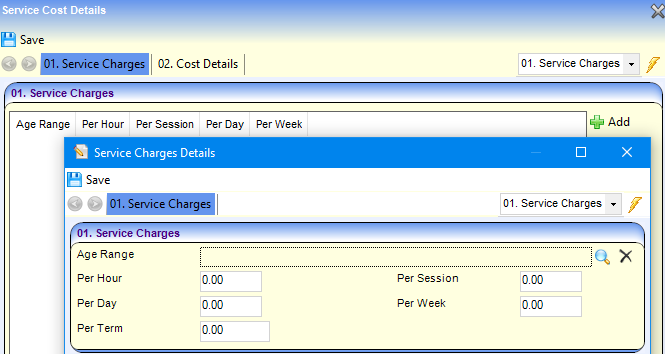
To add service charges for the service provision:
- Click the Add button on the Service Charges panel to display the Service Charges Details page.
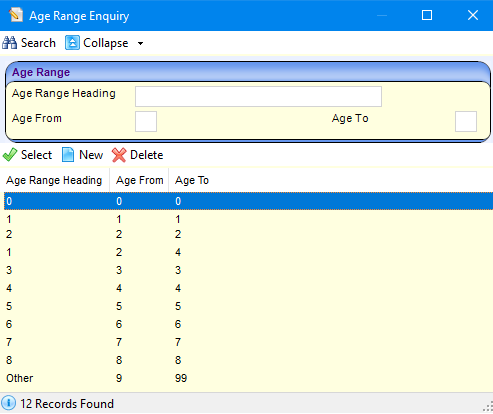
- Click the browse button to display the Age Range Enquiry dialog.
- Click the Search button to display all the available age ranges.
- Select the required age range and click the Select button.
- Enter the charges for the selected age range.
- Click the Save button.
Entering Cost Details
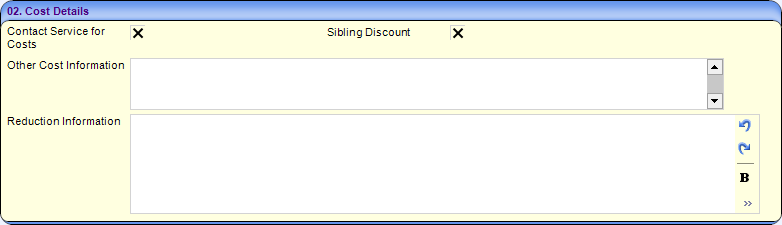
On the Cost Details panel:
- If the service can be contacted regarding costs, select the Contact Service for Costs check box to display a tick.
- If the service offers a discount for siblings, select the Sibling Discount check box to display a tick.
- If required, enter Other Cost Information.
- If required, enter a Reduction Information memo.
- After completing the required details, click the Save button.
 Related Reference Guides: Related Reference Guides:
|