
The instructions on this page were different in the following release(s):
3.87
Early Years
Release Note Spring 2026 (3.88)
Early Years Census
Census Return
The Early Years census is a statutory return that must be run on the third Thursday in January. It produces an XML file listing early years information about selected providers, as recorded in the v4 Client. The census is generated in the v4 Client via Focus | Early Years | Census Return.
View Existing Returns
To view previous census returns, select Focus | Early Years | Census Return, enter information into the search fields on the Early Years Census Enquiry page and then click the Search button. The search results are displayed in the panel at the bottom.
Generating a New Return
- Select Focus | Early Years | Census Return to display the Early Years Census Enquiry page.
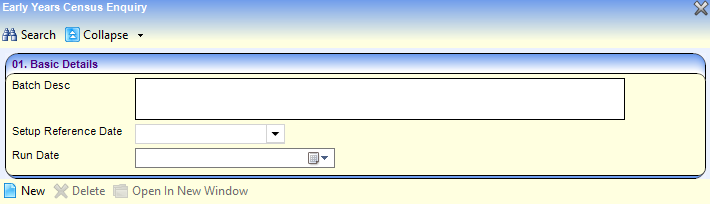
- Click the New button to display the Census Return Batch Details page.
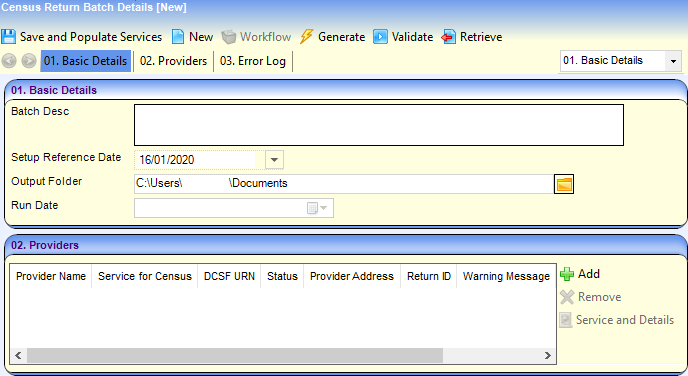
- Enter a Batch Description.
The Setup Reference Date is automatically set to the census return date (third Thursday in January). - Select an Output Folder. This is the folder to which the XML file generated by the return is saved.
- Select the providers to be returned:
- In the Providers panel, click the Add button to display the Search Childcare Provider dialog.
- Enter search criteria and then click the Search button to display a list of matching providers.
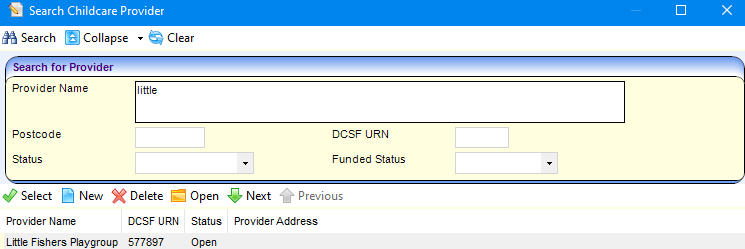
- Highlight the required providers and click the Select button to select the providers and close the dialog.
- Click the Save and Populate Services button to save the census details and update the Service for Census.
- If required, to select a different service:
- Highlight the provider in the Providers panel.
- Click the Service and Details button to display the Census Details page.
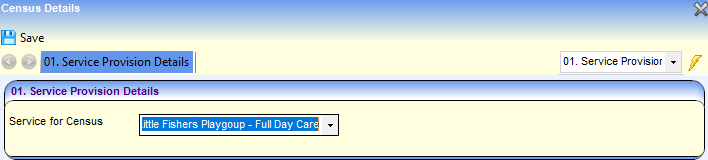
- Select a Service for Census.
- Click the Save button.
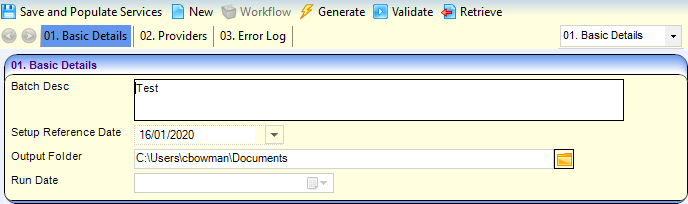
- Click the Generate button to display a confirmation message.
- Click the Yes button to pre-populate the census details and display a message in My Workflow Messages.

- Click the link on the message to display the Census Return Batch Details page.
- Highlight the required provider in the Providers panel and click on the Service and Details button to display the pre-populated Census Details page.
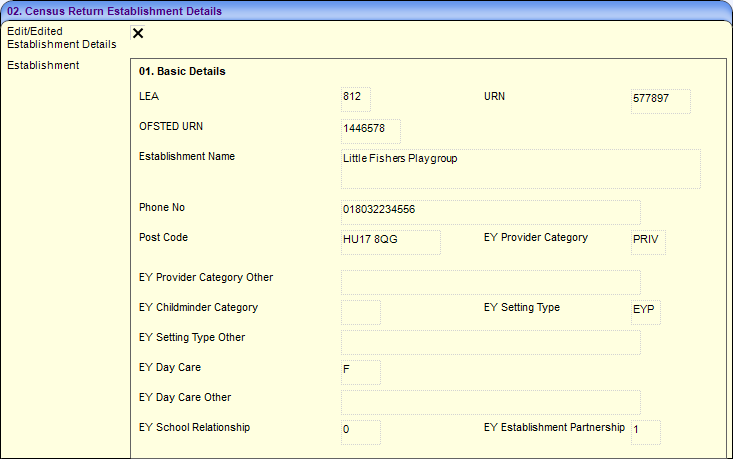
- Select (tick) the Edit/Edited Establishment Details check box to enable the fields on the Availability and Opening Times, Total Staff Information and Children by Age panels.
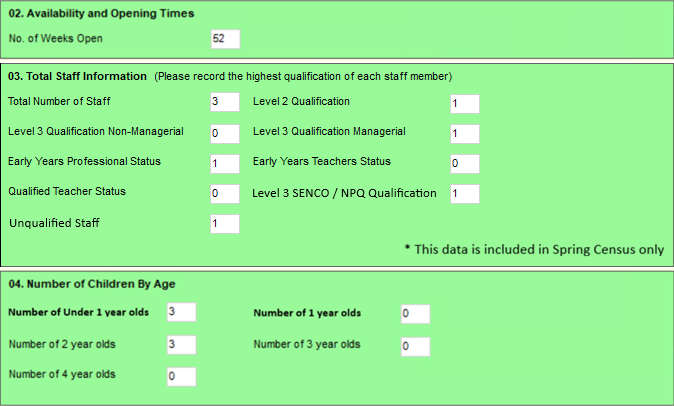
- Change the census information as required and click the Save button to display the Census Return Batch Details page.
- Click the Validate button to display a confirmation dialog.
- Click the OK button to validate the information against the DfE schema and display a message in My Workflow Messages.

- Click on the workflow message to open the Census Return Batch Details page. The Run Date is updated and the list of providers is updated with the ReturnId and ServerPath.
Any errors generated during the generation of the return are displayed in the Error Log panel.
- Click the Retrieve button to retrieve the return and save the file to the output folder selected in the Basic Details field.

If errors are raised during the validation and the information is updated, the census must be regenerated. Any updates already made to the pre-populated census details will not be overwritten unless the Edit/Edited Establishment Details check box is deselected (unchecked).
 Related Reference Guides: Related Reference Guides:
|