
Early Years
Update Provider Basic Details
Update Provider Basic Details
- Select Focus | Early Years | Search for Provider to display the Search childcare provider page.
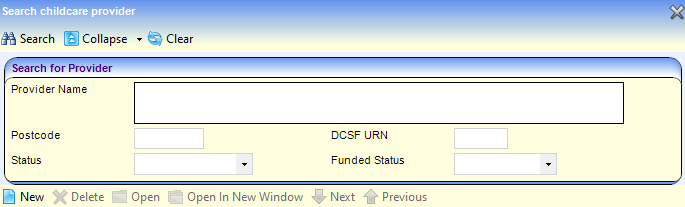
- Enter one or more search criteria and click the Search button to display a list of matching providers.
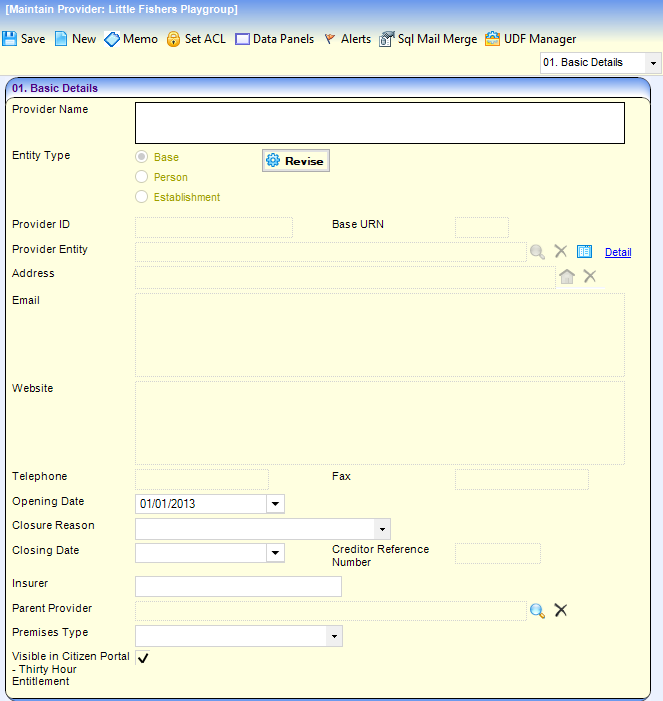
- Select the required provider and click the Open In New Window button to display the Maintain Provider page.
- If required, update the following information:
- Enter a new Provider Name.
- Click the Revise button to enable the Entity Type radio buttons and select a different Entity Type.
- To select a new base, person or establishment to link to the provider:
- Click the Provider Entity browse button to display the Search Base, Search Person or Search Establishment dialog depending on the Entity Type selected.
- Select or create a base, person or establishment.
- Select an Opening Date.
- Select a Closing Date and Closure Reason (lookup table ID: 0421).
- Enter an Insurer.
- Click the browse button to display the Search Childcare Provider dialog and select a Parent Provider.
- Select a Premises Type (lookup table ID: 0480).
- Click the Save button to automatically update the Address, Email, Website, Telephone and Fax with the details of the Provider Entity selected.
Update Household Members
If an Entity Type of Person is selected on the Basic Details panel, the Household Members panel is displayed. A household member can be added, edited or removed.
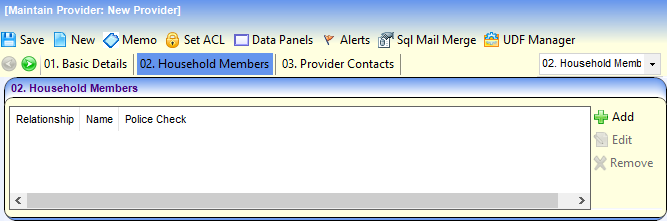
To add a new household member:
- Click the Add button to display the Provider Household Member dialog.
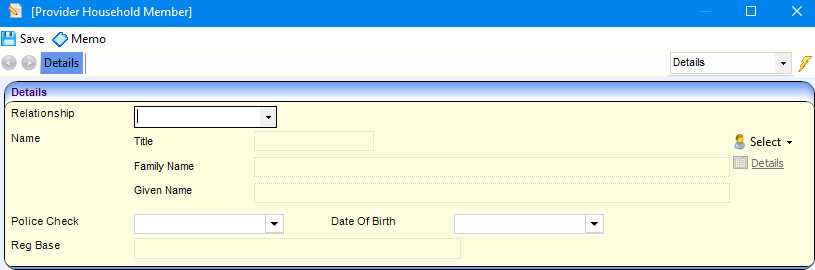
- Select the Relationship to the provider.
- Click the Select button to display the Person Enquiry dialog and select a person.
- Select the date of the last Police Check and the Date of Birth.
- Click the Save button.
 Related Reference Guides: Related Reference Guides:
|